

- Line Item Presets — key-value targeting rules for line items.
- Creative Presets — a named list of values for creatives.
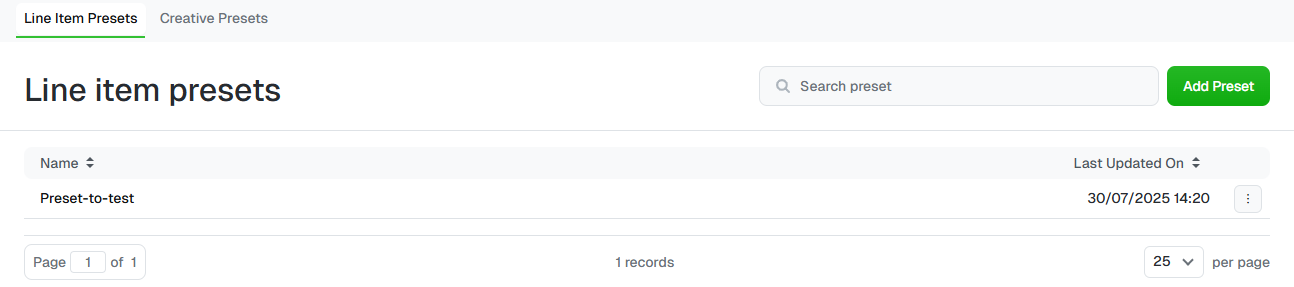
The Line Item Presets tab.
Create a line item preset
1
Open Targeting Presets
Select in the sidebar, then click the
tile. The Line Item Presets tab opens.
2
Add a preset
Click in the top right.
3
Name it
Enter a Name your team will recognise, such as
UK dealers 2026.4
Enter the values
Type your targeting rules in Values using the format below (up to 500
characters). The Preview shows how Uplift Hub reads them.
5
Save
Click .
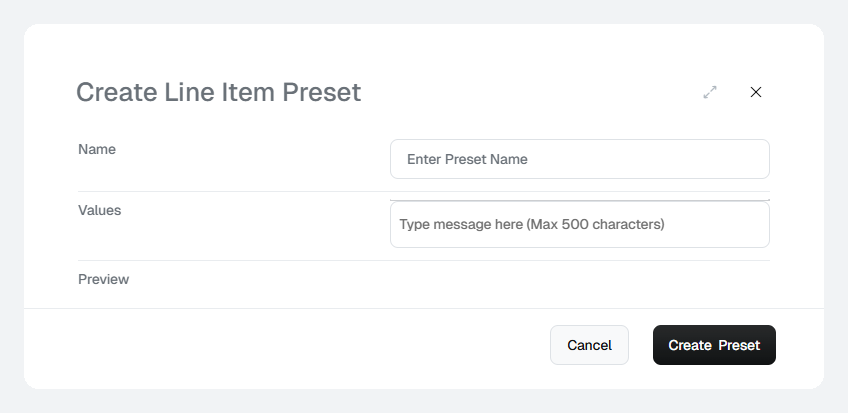
The Create Line Item Preset dialog.
How to write values
Each rule is akey=value pair.
- Commas on the same line combine rules with AND — every rule on that line must match.
- A new line starts another group, combined with OR — any one line can match.
(dealerid=393728 AND dealerid=396933) OR (year=2000).
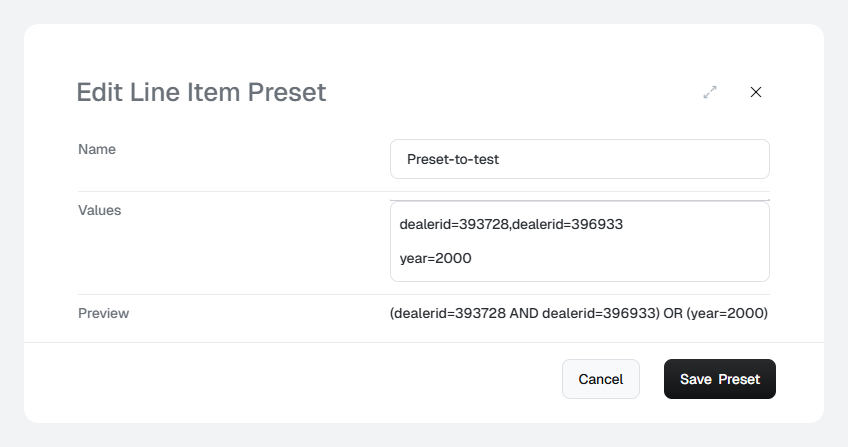
A saved preset — the Preview confirms how the rules combine.
Create a creative preset
1
Open the Creative Presets tab
On the Targeting Presets screen, click the tab.
2
Add a preset
Click .
3
Fill in the details
Enter a Name and choose an Array Type —
String for text values or
Number for numeric values. Add the Values (up to 500 characters).4
Save
Click .
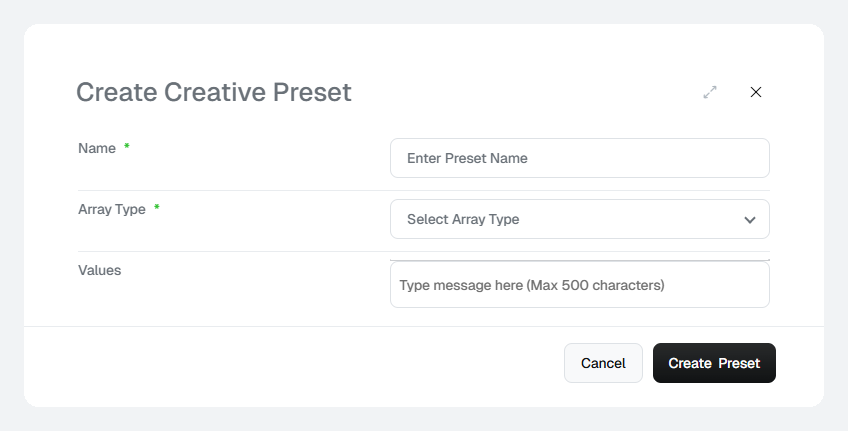
The Create Creative Preset dialog.
Edit or delete a preset
- Edit — click the preset’s name, make your changes and click .
- Delete — click the ⋮ menu at the end of the row and select .