

AI Providers
The AI Providers tab lists the AI services connected to your client and which features each one powers.
The AI Providers tab — each card lists the features that provider powers.
Set your output defaults
Output Defaults apply to everything the AI writes for your client.1
Open Output Defaults
Select in the sidebar, click
, then click the tab.
2
Choose a language
Pick the Default Output Language — for example
English, German or
French.3
Describe your tone of voice
In Tone of Voice, describe how your brand should sound — style,
formality, what to lead with and what to avoid.
4
Save
Click .
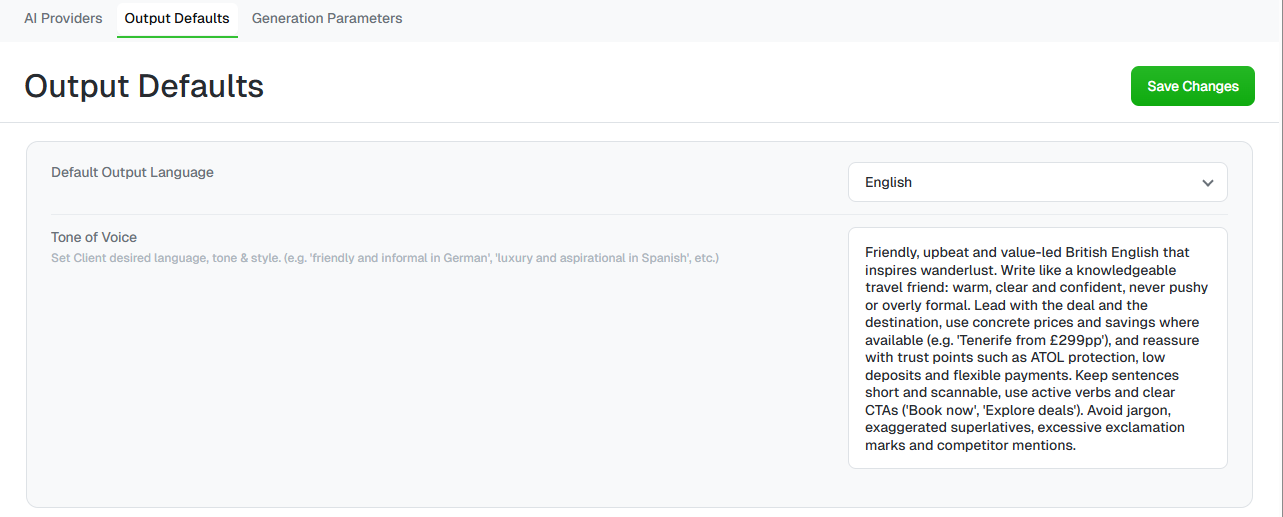
Output Defaults — the default language and a tone of voice description.
Tune generation parameters
Generation Parameters lets you fine-tune each AI feature separately. Each feature has its own collapsible section:- Creative Copy Generation
- Line Item Briefs
- Campaign Briefs
- Audience Descriptions
- Translation
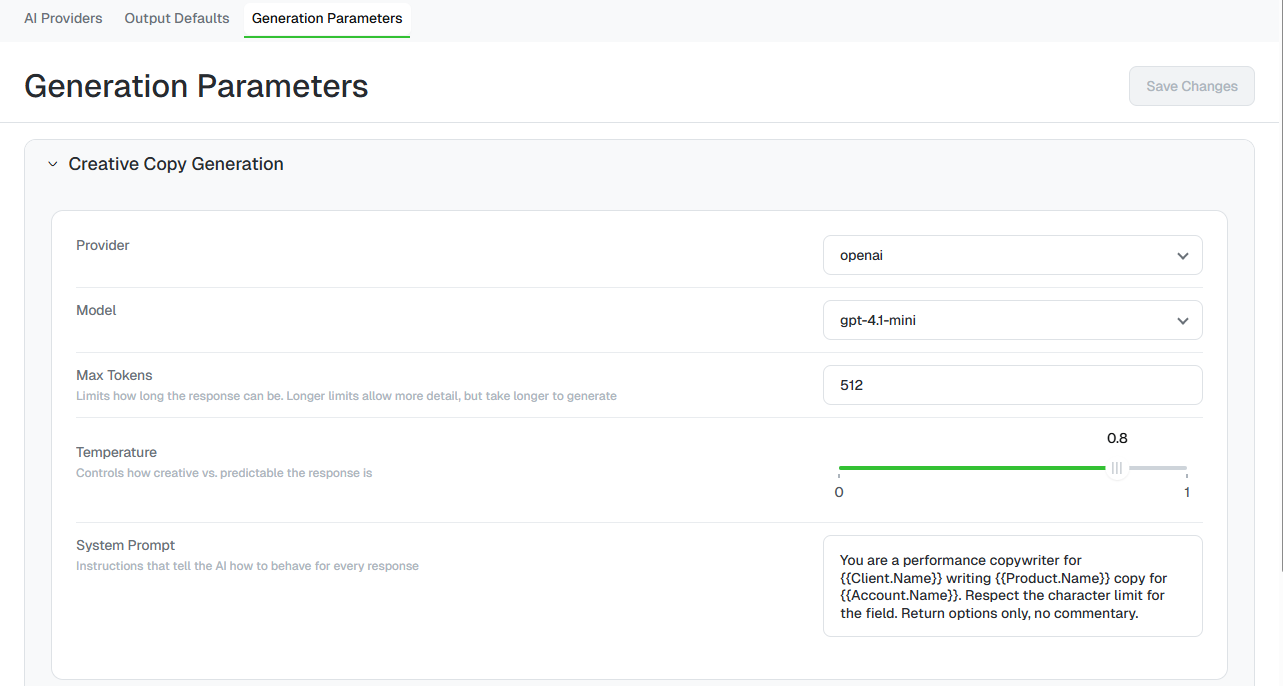
Generation Parameters for Creative Copy Generation.
Use placeholders in the system prompt
The system prompt can include placeholders that Uplift Hub fills in for each request — for example{{Client.Name}}, {{Account.Name}} and
{{Product.Name}}:
Test before you save
1
Adjust the settings
Expand a feature and change its model, temperature or system prompt.
2
Run a test
In Test Prompt, click . Uplift Hub sends a
real request using that feature’s current settings and shows three
suggestions.
3
Save
When you’re happy with the results, click in the top
right.
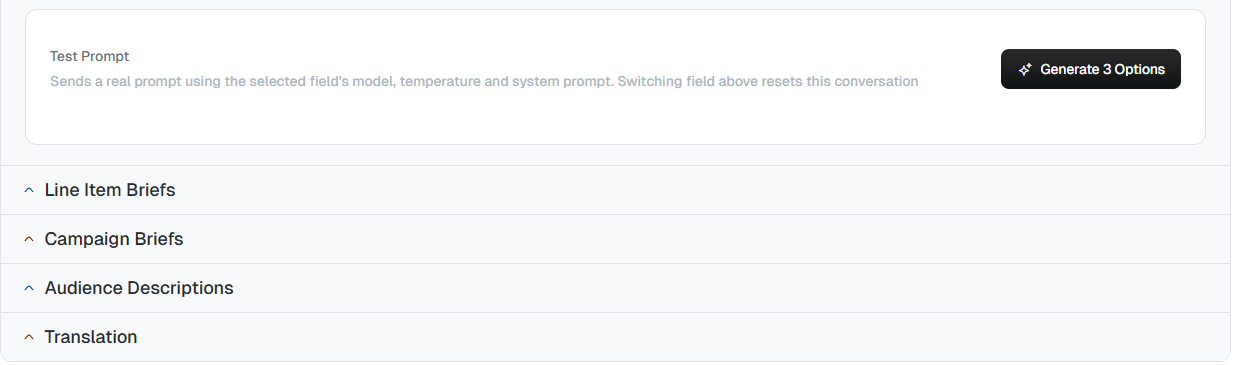
Test Prompt and the other AI features, each in its own section.
Switching to a different feature resets the test conversation.