> ## Documentation Index
> Fetch the complete documentation index at: https://docs.uplifthub.io/llms.txt
> Use this file to discover all available pages before exploring further.
# Campaign tabs
> What each tab on a campaign does — Overview, Brief, Creatives, Evidence, Reporting, Comments, Documents, History, and Settings.
export const Pill = ({tone = "live", children}) =>
{children}
;
export const Ui = ({children}) =>
{children}
;
Every campaign has nine tabs running across the top of the screen. Each one scopes a different aspect of the campaign — from the core details and creative assets through to the full change log. This page explains what lives in each tab and when to use it.
***
## Overview
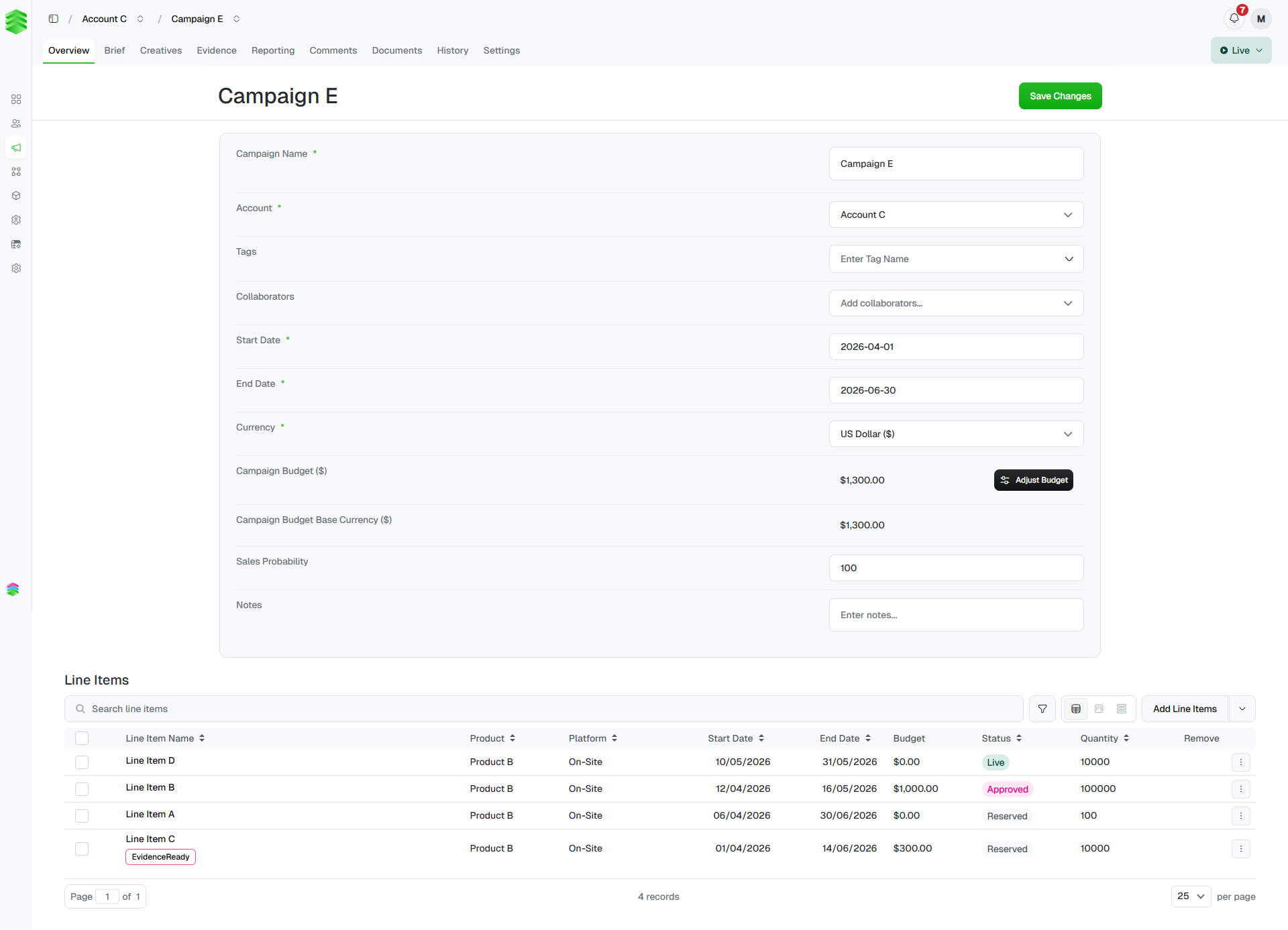
The default view when you open a campaign. This is the main form — edit the campaign name, account, dates, budget, currency, sales probability, tags, collaborators, and notes. Click Save Changes in the top right to persist any edits.
The line items table sits below the form. From here you can search and filter line items, switch between Table, Board, and Timeline views, and click Add Line Items to add new ones.
 **Currency cannot be changed after creation.** If you need to correct it, delete the campaign and start again. See [Creating a campaign](/setup/create-campaign).
***
## Brief
The **Brief** tab holds campaign context that sits alongside — but separate from — the core campaign details on the Overview tab.
### Campaign brief fields
| Field | Notes |
| ------------------------------ | ------------------------------------------------------------------ |
| **Targeting Requirements** | Free-text description of the targeting criteria for this campaign. |
| **Campaign URL** | The primary destination URL for the campaign. |
| **Star Rating** *(hotel only)* | The star rating of the property being advertised. |
| **Location** *(hotel only)* | The location of the property. |
| **Special Instructions** | Any additional notes for the delivery or creative team. |
### Assets
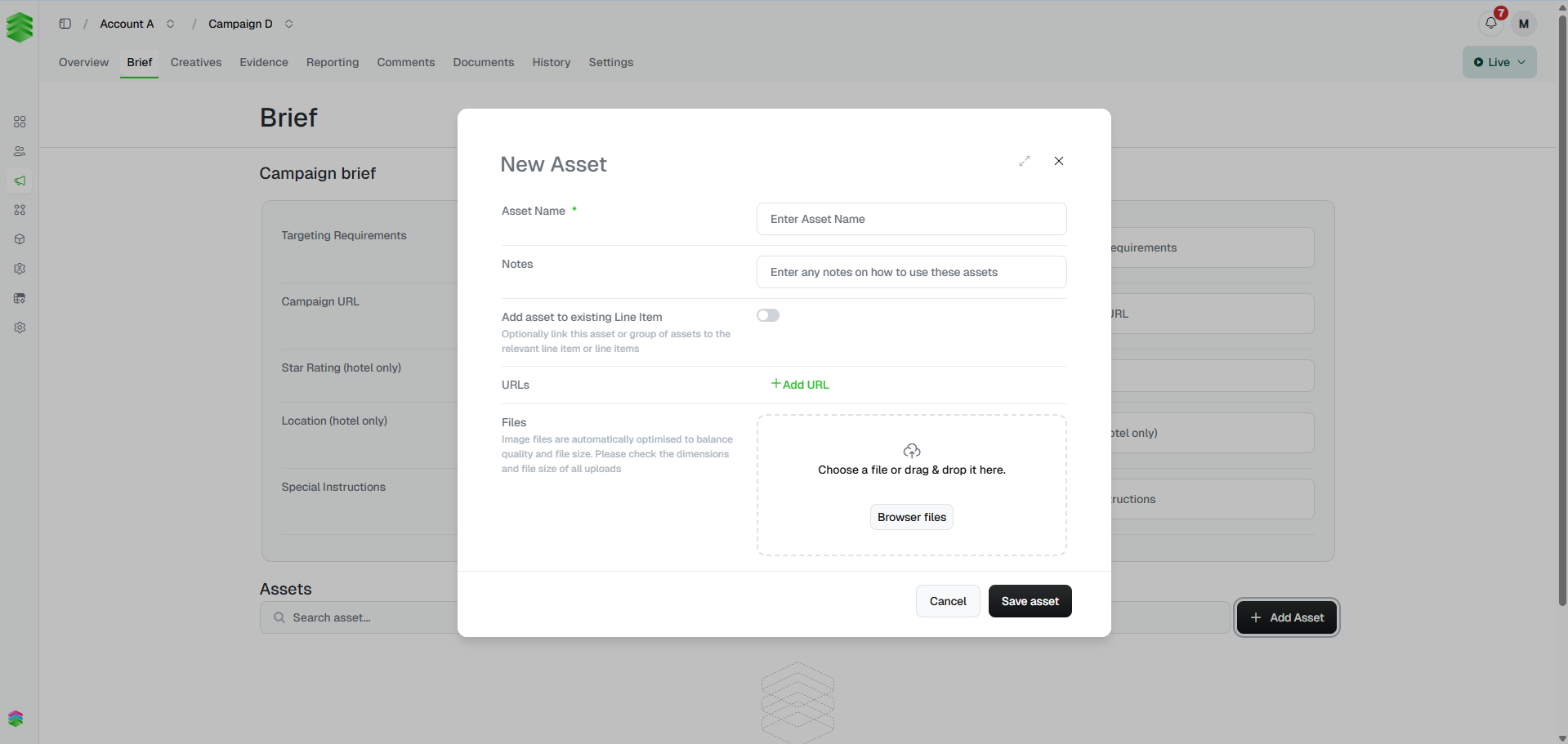
The **Assets** section is where you store raw client-supplied files and brand assets before they are built into creatives — logos, hero images, brand guidelines, or any other files the client has provided. Click + Add Asset to open the New Asset modal.
Each asset has an **Asset Name** (required), optional **Notes** on how to use it, an option to link the asset to one or more line items, one or more **URLs**, and a file upload area. Image files are automatically optimised for quality and file size on upload.
A separate **Line Items Assets** section at the bottom of the page groups any assets that have been linked to specific line items.
**Currency cannot be changed after creation.** If you need to correct it, delete the campaign and start again. See [Creating a campaign](/setup/create-campaign).
***
## Brief
The **Brief** tab holds campaign context that sits alongside — but separate from — the core campaign details on the Overview tab.
### Campaign brief fields
| Field | Notes |
| ------------------------------ | ------------------------------------------------------------------ |
| **Targeting Requirements** | Free-text description of the targeting criteria for this campaign. |
| **Campaign URL** | The primary destination URL for the campaign. |
| **Star Rating** *(hotel only)* | The star rating of the property being advertised. |
| **Location** *(hotel only)* | The location of the property. |
| **Special Instructions** | Any additional notes for the delivery or creative team. |
### Assets
The **Assets** section is where you store raw client-supplied files and brand assets before they are built into creatives — logos, hero images, brand guidelines, or any other files the client has provided. Click + Add Asset to open the New Asset modal.
Each asset has an **Asset Name** (required), optional **Notes** on how to use it, an option to link the asset to one or more line items, one or more **URLs**, and a file upload area. Image files are automatically optimised for quality and file size on upload.
A separate **Line Items Assets** section at the bottom of the page groups any assets that have been linked to specific line items.
 ***
## Creatives
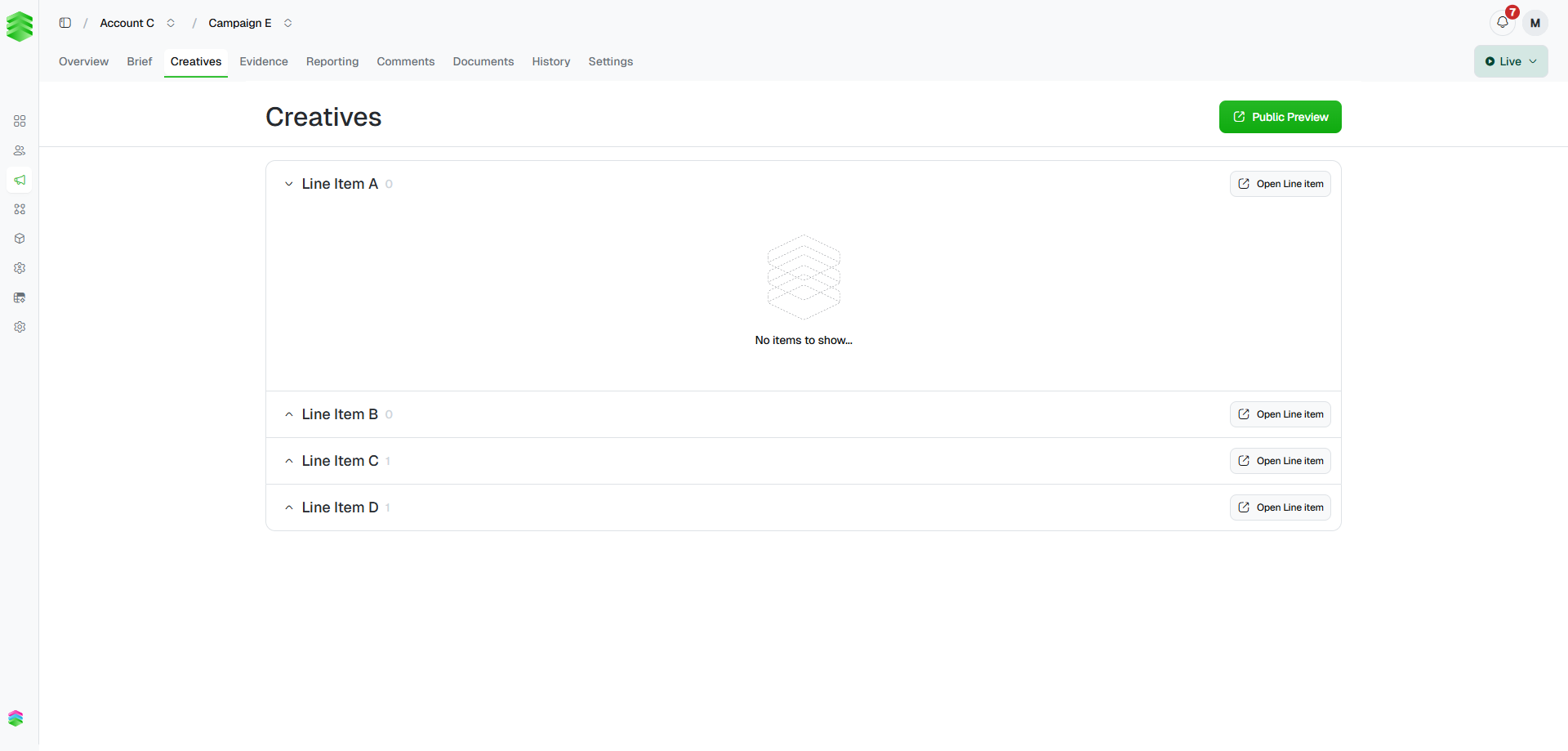
A campaign-level roll-up of every creative across all line items. Each line item appears as a collapsible section showing its creatives with thumbnail previews and status. Click Open Line item on any section header to jump to that line item directly, or click the external link icon on a creative card to go straight to the creative detail page.
Use Public Preview in the top right to generate a shareable preview link for the whole campaign.
***
## Creatives
A campaign-level roll-up of every creative across all line items. Each line item appears as a collapsible section showing its creatives with thumbnail previews and status. Click Open Line item on any section header to jump to that line item directly, or click the external link icon on a creative card to go straight to the creative detail page.
Use Public Preview in the top right to generate a shareable preview link for the whole campaign.
 This view is read-only. To edit a creative, click through to its detail page. See [Building creatives](/creatives/build).
***
## Evidence
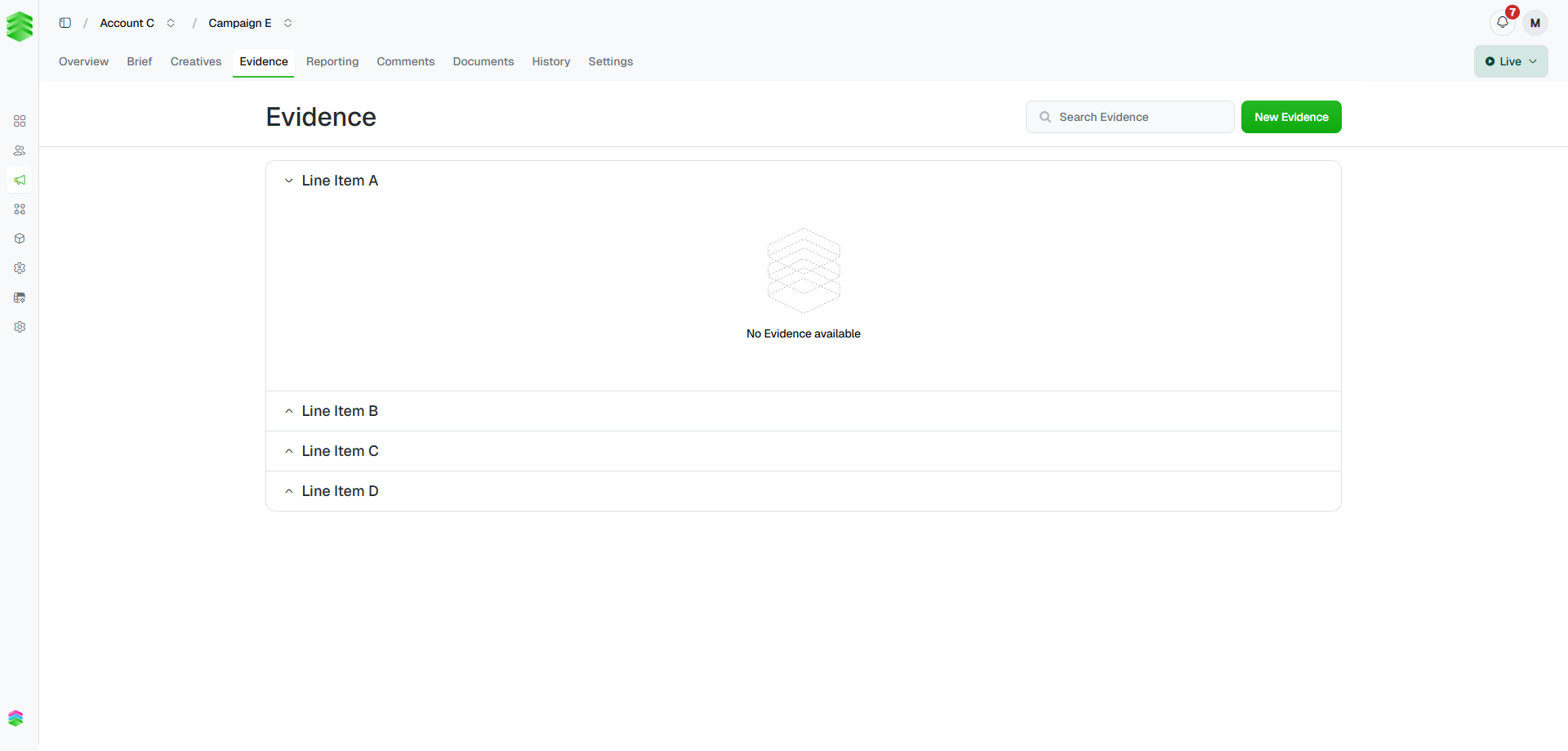
The **Evidence** tab is where you store proof that a campaign is live or has completed — typically screenshots of ads appearing in situ. Evidence is grouped by line item.
Click New Evidence to upload a screenshot for a specific line item. Use the search bar to find evidence already uploaded. Evidence is visible at both campaign and line item level.
This view is read-only. To edit a creative, click through to its detail page. See [Building creatives](/creatives/build).
***
## Evidence
The **Evidence** tab is where you store proof that a campaign is live or has completed — typically screenshots of ads appearing in situ. Evidence is grouped by line item.
Click New Evidence to upload a screenshot for a specific line item. Use the search bar to find evidence already uploaded. Evidence is visible at both campaign and line item level.
 ***
## Reporting
Shows the campaign's performance dashboard — impressions, clicks, CTR, and revenue as headline KPIs, with a line item breakdown table and time-series charts below. For line items delivered via Uplift Ads or Uplift Ads+, this data is populated automatically.
See [Tracking performance](/reporting/tracking) for more detail on automated vs manual reporting.
***
## Reporting
Shows the campaign's performance dashboard — impressions, clicks, CTR, and revenue as headline KPIs, with a line item breakdown table and time-series charts below. For line items delivered via Uplift Ads or Uplift Ads+, this data is populated automatically.
See [Tracking performance](/reporting/tracking) for more detail on automated vs manual reporting.
.png) ***
## Comments
A shared comment thread for the campaign. Use **@mentions** to notify specific teammates or your Platform 195 representative directly. Comments are visible to everyone with access to the campaign and are a good place to flag questions, blockers, or approvals.
***
## Documents
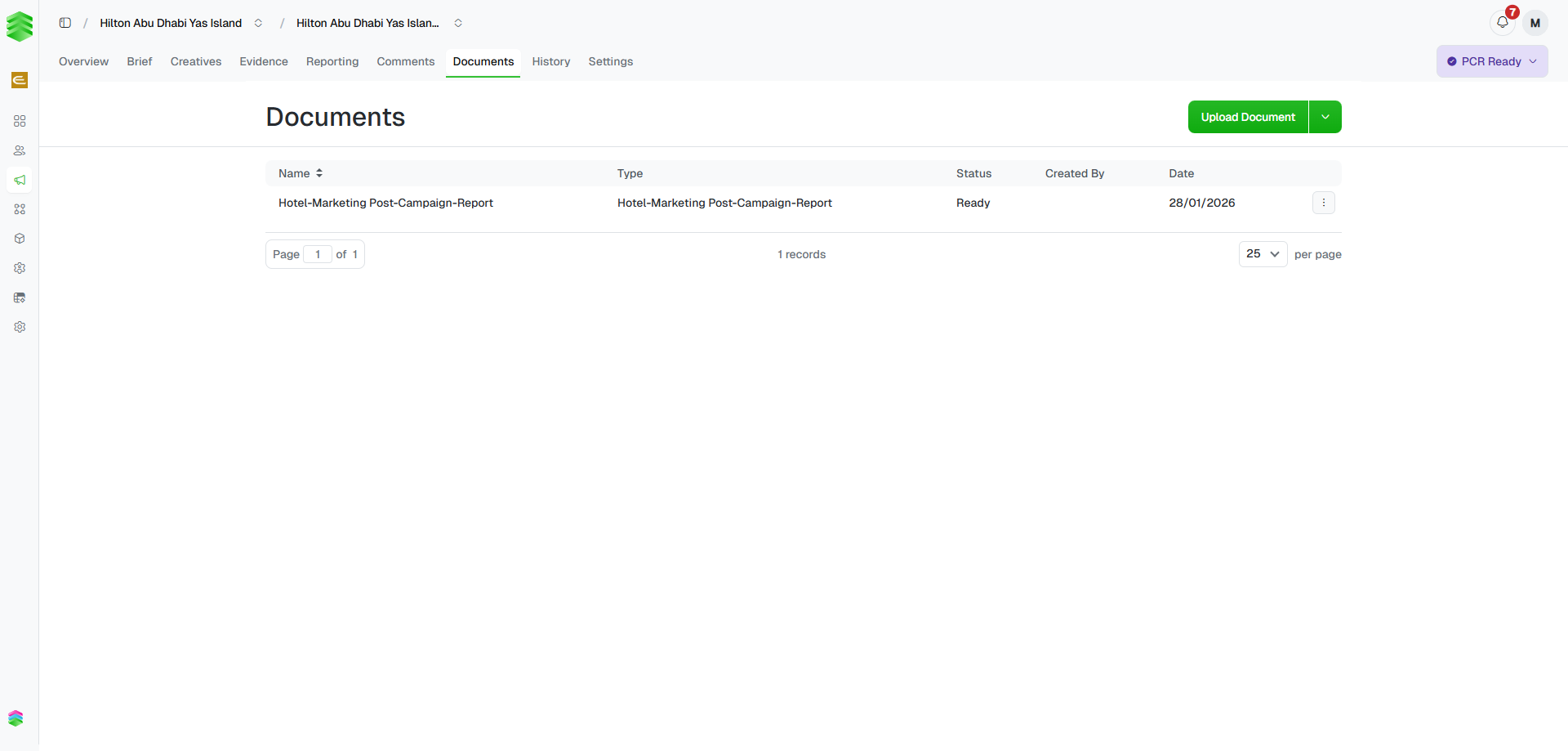
Stores generated and uploaded documents against the campaign — post-campaign reports, insertion orders, proposals, and any other files. Click Upload Document to add a file from your computer, or use the dropdown arrow next to it to generate a document from a template.
Each document shows its name, type, status, who created it, and the date. Click the **⋯** menu on any row to edit, send, download, or delete it.
***
## Comments
A shared comment thread for the campaign. Use **@mentions** to notify specific teammates or your Platform 195 representative directly. Comments are visible to everyone with access to the campaign and are a good place to flag questions, blockers, or approvals.
***
## Documents
Stores generated and uploaded documents against the campaign — post-campaign reports, insertion orders, proposals, and any other files. Click Upload Document to add a file from your computer, or use the dropdown arrow next to it to generate a document from a template.
Each document shows its name, type, status, who created it, and the date. Click the **⋯** menu on any row to edit, send, download, or delete it.
 Post-campaign reports are generated from a Google Slides template configured for your workspace. After clicking Generate, wait a few seconds and refresh. If you don't see the document type you need, contact [support@uplifthub.io](mailto:support@uplifthub.io).
***
## History
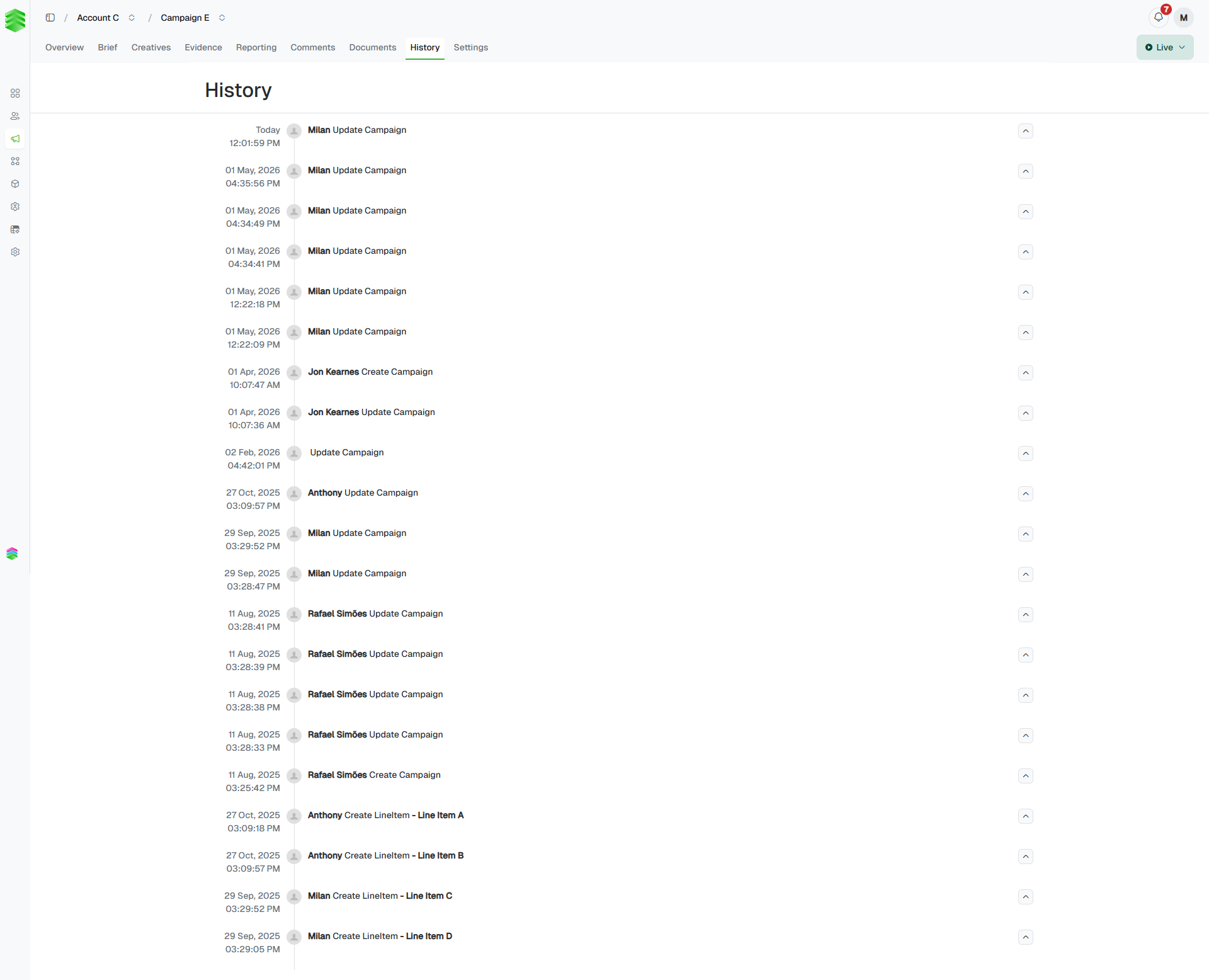
A full, chronological log of every change made to this campaign and its line items — who did what and when. Each entry shows the timestamp, user, and action (e.g. **Update Campaign**, **Create LineItem**). Click the chevron on any entry to expand it and see the specific fields that changed.
Post-campaign reports are generated from a Google Slides template configured for your workspace. After clicking Generate, wait a few seconds and refresh. If you don't see the document type you need, contact [support@uplifthub.io](mailto:support@uplifthub.io).
***
## History
A full, chronological log of every change made to this campaign and its line items — who did what and when. Each entry shows the timestamp, user, and action (e.g. **Update Campaign**, **Create LineItem**). Click the chevron on any entry to expand it and see the specific fields that changed.
 ***
## Settings
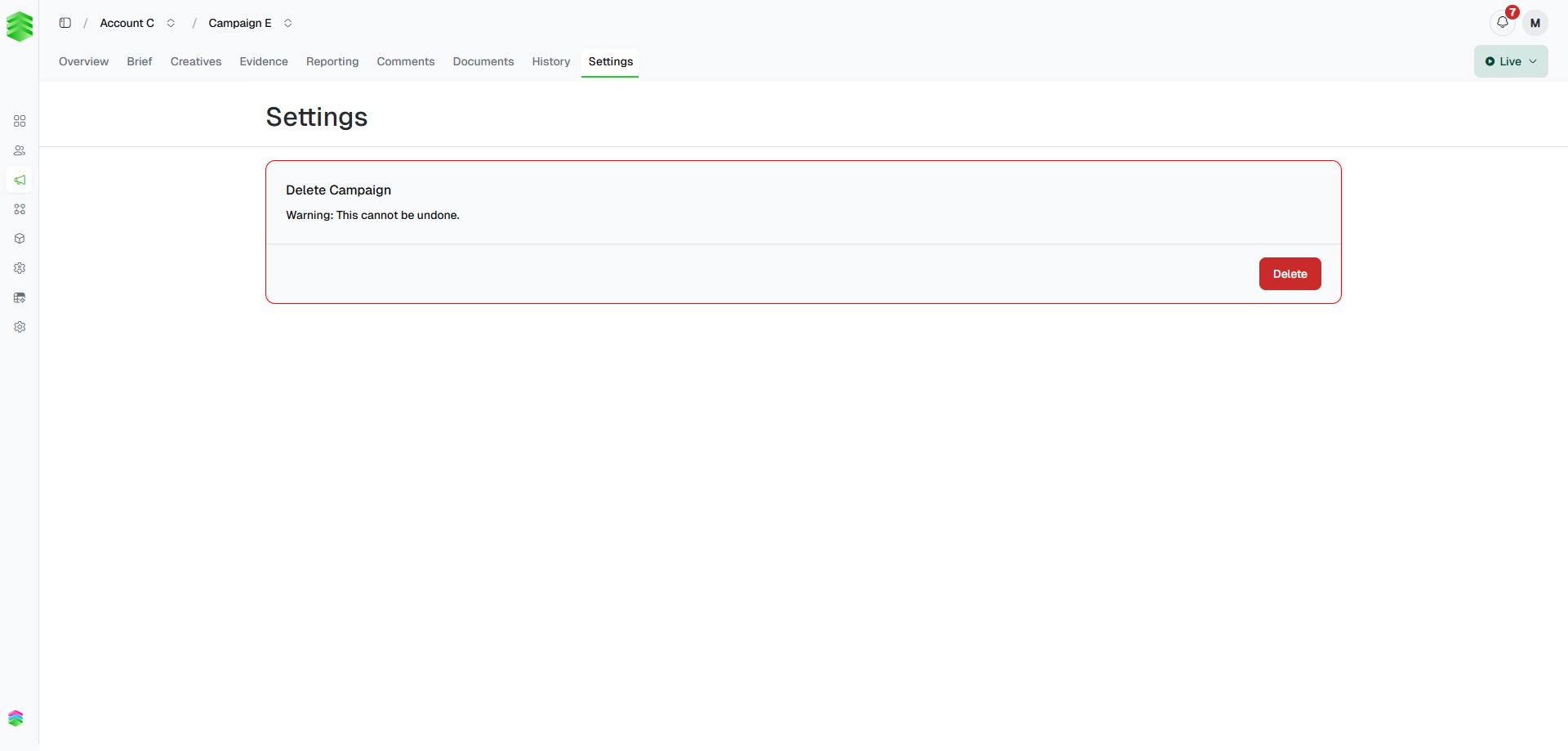
Contains the **Delete Campaign** action. Deleting a campaign is permanent and removes all associated line items and creatives.
**Deletion cannot be undone.** All line items, creatives, evidence, documents, and history for this campaign will be permanently removed. If you need to stop a campaign from delivering without deleting it, set its status to Paused or Archived instead — see [Campaign extras](/more/campaign-extras).
***
## Settings
Contains the **Delete Campaign** action. Deleting a campaign is permanent and removes all associated line items and creatives.
**Deletion cannot be undone.** All line items, creatives, evidence, documents, and history for this campaign will be permanently removed. If you need to stop a campaign from delivering without deleting it, set its status to Paused or Archived instead — see [Campaign extras](/more/campaign-extras).