> ## Documentation Index
> Fetch the complete documentation index at: https://docs.uplifthub.io/llms.txt
> Use this file to discover all available pages before exploring further.
# Adding line items
> Two ways to add line items, plus tips for filling them out.
export const Pill = ({tone = "live", children}) =>
{children}
;
export const Ui = ({children}) =>
{children}
;
Line items are the individual rows of your media plan — each one sits inside a
campaign and is associated with exactly one product. If you created a **Package**
campaign, line items are generated automatically with the right products and
rates pre-filled; you mainly need to confirm dates and units. If you created a
**Custom** campaign, you'll add line items individually to match the media plan.
## Two ways to add a line item
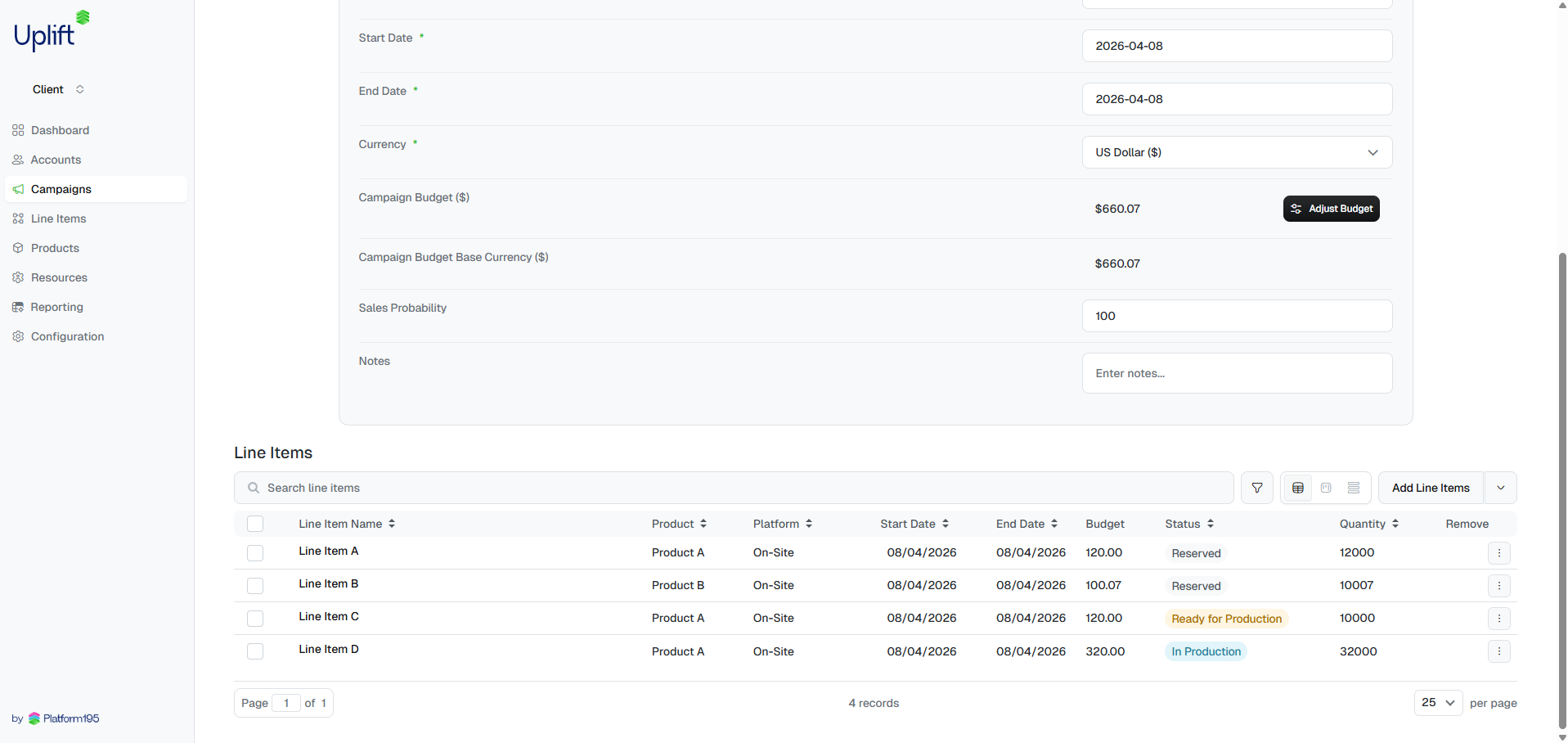
**From inside a campaign** — open the campaign, scroll to the line items table
and click Add Line Items. The campaign is pre-filled automatically.
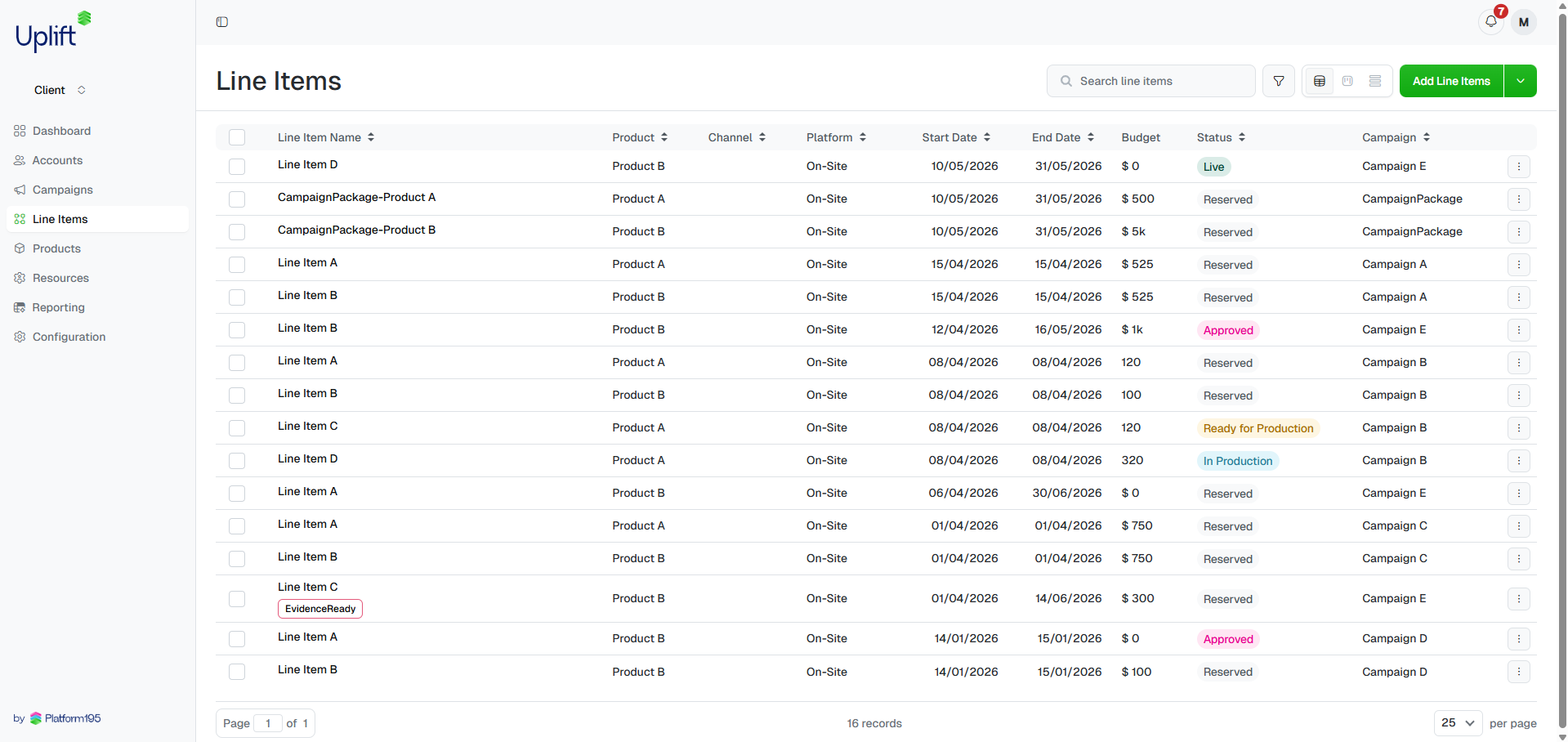
 **From the Line Items page** — select Line Items in the sidebar and
click Add Line Items in the top right. You'll need to select the
campaign from the dropdown in the form.
**From the Line Items page** — select Line Items in the sidebar and
click Add Line Items in the top right. You'll need to select the
campaign from the dropdown in the form.
 ***
## Fill in the form
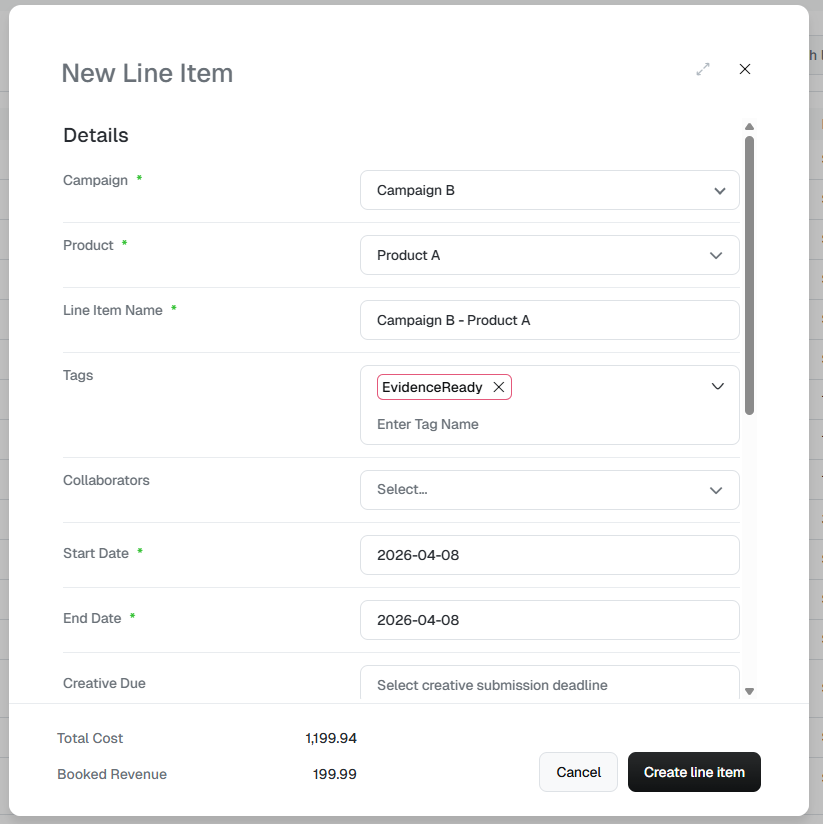
Provide as much detail as possible before saving. The key fields are:
| Field | Notes |
| -------------------- | ------------------------------------------------------------------------------------ |
| **Campaign** | Pre-filled if you started from a campaign; otherwise select from the dropdown. |
| **Product** | The ad product being sold. Not sure which to pick? See the tip below. |
| **Market** | The geographic or audience market this line item targets. |
| **Start / End date** | The flight dates for this line item. |
| **Units** | The volume being sold — impressions, clicks, or other unit depending on the product. |
| **Rate** | The price per unit. |
| **Pricing model** | How the line item is charged — CPM, CPC, flat fee, etc. |
Use Notes for any special instructions such as targeting requirements,
prioritisation, or links to the media plan or brief.
***
## Fill in the form
Provide as much detail as possible before saving. The key fields are:
| Field | Notes |
| -------------------- | ------------------------------------------------------------------------------------ |
| **Campaign** | Pre-filled if you started from a campaign; otherwise select from the dropdown. |
| **Product** | The ad product being sold. Not sure which to pick? See the tip below. |
| **Market** | The geographic or audience market this line item targets. |
| **Start / End date** | The flight dates for this line item. |
| **Units** | The volume being sold — impressions, clicks, or other unit depending on the product. |
| **Rate** | The price per unit. |
| **Pricing model** | How the line item is charged — CPM, CPC, flat fee, etc. |
Use Notes for any special instructions such as targeting requirements,
prioritisation, or links to the media plan or brief.
 Not sure which product to select? Leave a comment on the campaign's
Comments tab. Type **@** followed by a teammate or your Platform 195
representative to notify them directly.
***
## After saving
A new line item lands in Draft status. It won't
deliver until it's set to Live. Before it can go live
you'll typically need to:
* Set assignees and confirm rates — see [Assignees & rates](/line-items/assignees-rates)
* Apply targeting if the product supports it — see [Targeting & forecast](/line-items/targeting)
* Upload creatives — see [Adding creatives](/creatives/add)
Not sure which product to select? Leave a comment on the campaign's
Comments tab. Type **@** followed by a teammate or your Platform 195
representative to notify them directly.
***
## After saving
A new line item lands in Draft status. It won't
deliver until it's set to Live. Before it can go live
you'll typically need to:
* Set assignees and confirm rates — see [Assignees & rates](/line-items/assignees-rates)
* Apply targeting if the product supports it — see [Targeting & forecast](/line-items/targeting)
* Upload creatives — see [Adding creatives](/creatives/add)
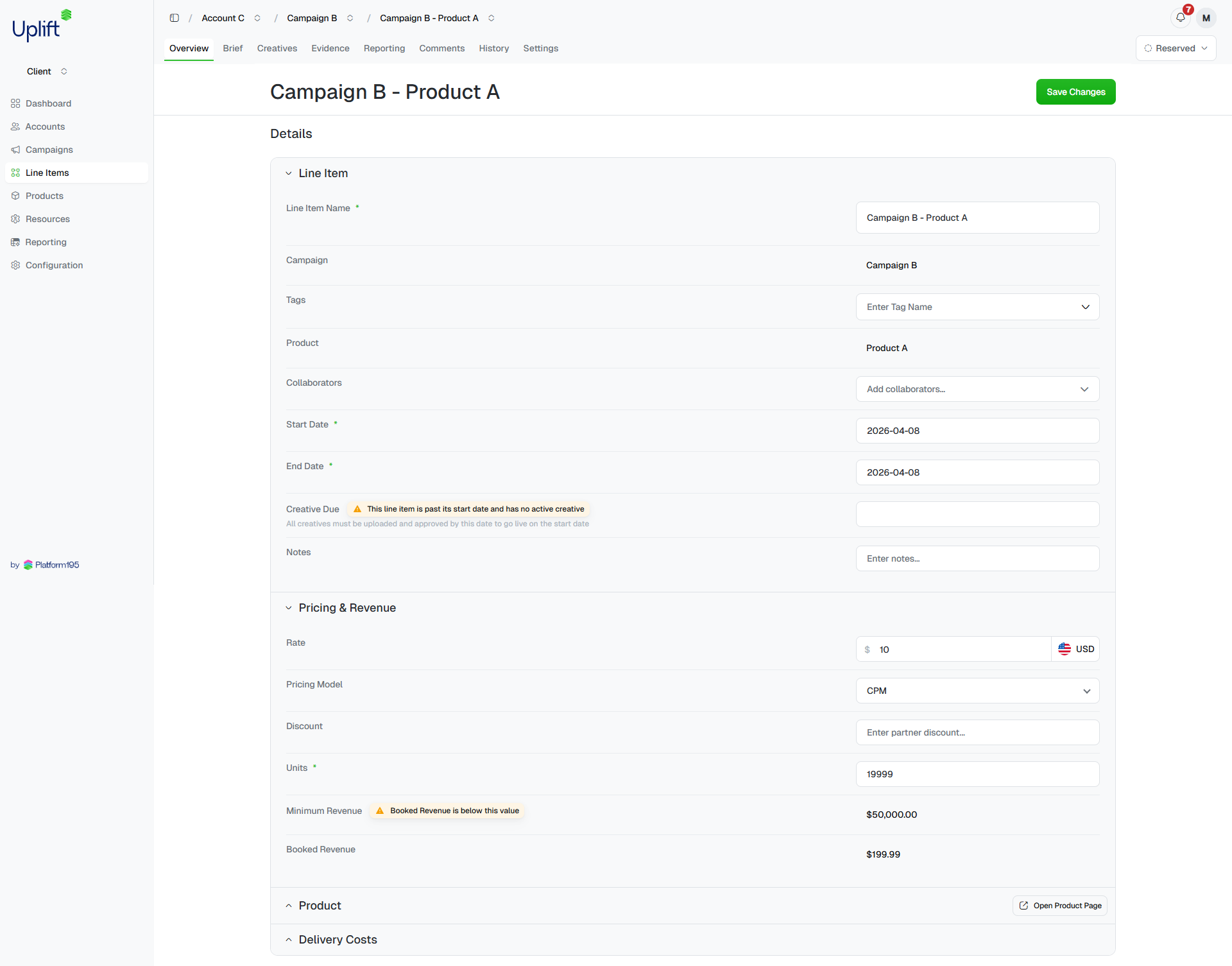 For **Package** campaigns, line items are pre-populated with the correct
products and rates. Check the dates and units are correct, then proceed to
creatives and go-live.
For **Package** campaigns, line items are pre-populated with the correct
products and rates. Check the dates and units are correct, then proceed to
creatives and go-live.