> ## Documentation Index
> Fetch the complete documentation index at: https://docs.uplifthub.io/llms.txt
> Use this file to discover all available pages before exploring further.
# Switching table views
> How to switch between Table, Board, and Timeline views on the Campaigns and Line Items screens.
export const Pill = ({tone = "live", children}) =>
{children}
;
export const Ui = ({children}) =>
{children}
;
The **Campaigns** and **Line Items** screens each offer three views — Table, Board, and Timeline — so you can work with your data in the format that suits you best. Filters work across all three views, and the line items table inside an individual campaign supports all three views too.
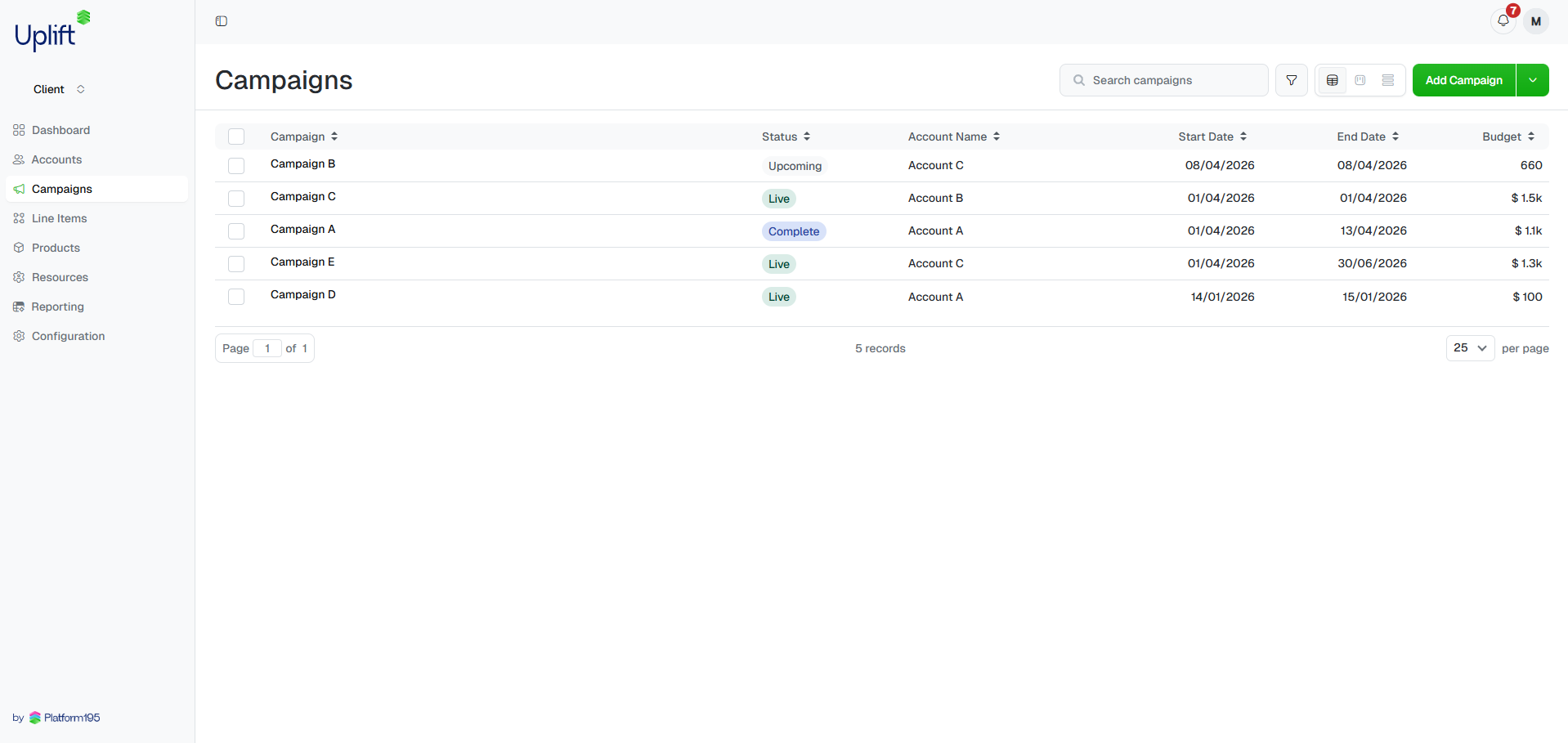
Click Campaigns or Line Items in the left sidebar. The screen defaults to **Table** view.
In the top-right corner of the screen, select one of the three view icons.
**Table** — a sortable, paginated list. Best for scanning large volumes of records or exporting data.
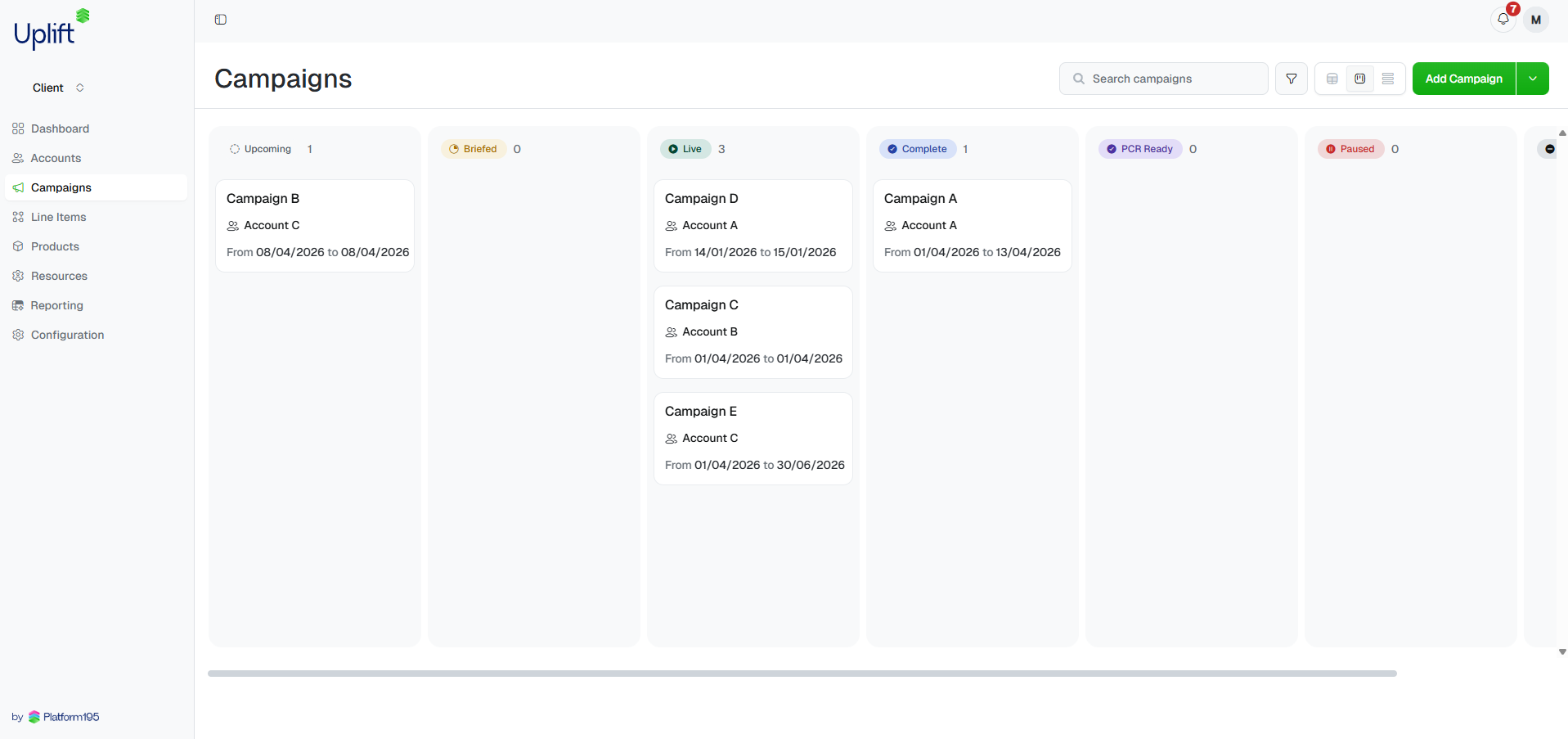
 **Board** — campaigns or line items grouped into columns by status (Upcoming, Briefed, Live, Complete, PCR Ready, Paused). Best for tracking workflow progress at a glance.
 **Timeline** — a Gantt-style chart showing each record as a bar across a calendar. Best for visualising flight dates and spotting scheduling conflicts.
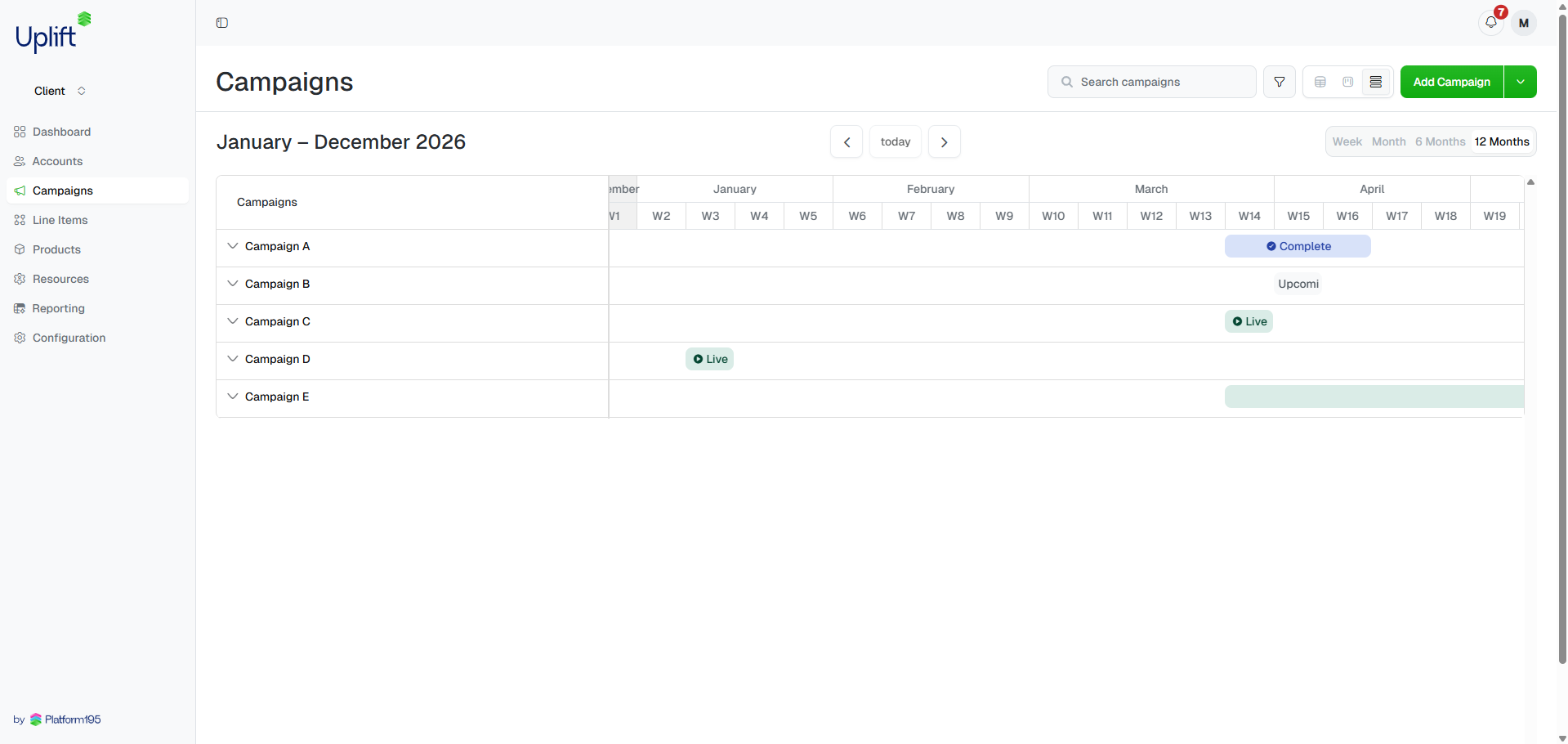 When in Timeline view, use the zoom controls in the top-right to switch between Week, Month, 6 Months, and 12 Months. Use the ← → arrows to scroll through time, or click today to jump back to the current date.
Use the filter bar to narrow records before or after switching views — filters carry across all three views. This is useful for focusing the Board or Timeline on a specific status, account, or date range without switching back to Table first.
The line items table inside an individual campaign supports all three views too. Open any campaign and use the same view icons above the line items table to switch between Table, Board, and Timeline for that campaign's line items.
Use **12 Months** in Timeline view to get a full-year picture of campaign flights — useful for spotting gaps or overlaps before planning new activity.
When in Timeline view, use the zoom controls in the top-right to switch between Week, Month, 6 Months, and 12 Months. Use the ← → arrows to scroll through time, or click today to jump back to the current date.
Use the filter bar to narrow records before or after switching views — filters carry across all three views. This is useful for focusing the Board or Timeline on a specific status, account, or date range without switching back to Table first.
The line items table inside an individual campaign supports all three views too. Open any campaign and use the same view icons above the line items table to switch between Table, Board, and Timeline for that campaign's line items.
Use **12 Months** in Timeline view to get a full-year picture of campaign flights — useful for spotting gaps or overlaps before planning new activity.