> ## Documentation Index
> Fetch the complete documentation index at: https://docs.uplifthub.io/llms.txt
> Use this file to discover all available pages before exploring further.
# Navigating Uplift Hub
> A tour of the app shell — the four-level hierarchy, the sidebar, the breadcrumb trail, and the tabs you'll see on every screen.
A tour of the app shell — the four-level hierarchy, the sidebar, the
breadcrumb trail, and the tabs you'll see on every screen. Read this once and
you'll know where everything lives.
Uplift Hub is organised around a single idea: **everything you do happens
inside an Account**. Accounts hold campaigns, campaigns hold line items,
line items hold creatives. Once that hierarchy clicks, the rest of the app
falls into place.
## The hierarchy
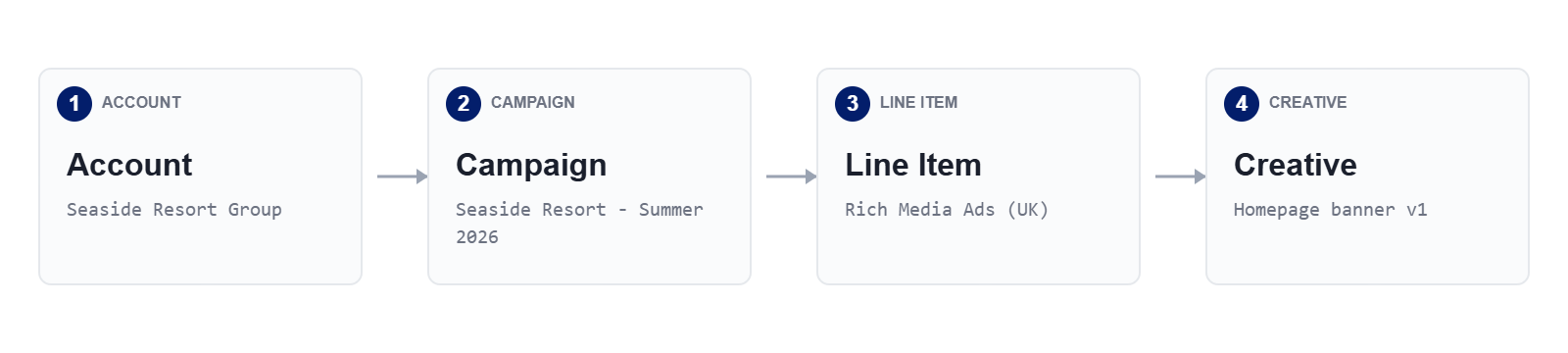 The buying company — usually the advertiser. Sits at the top of the
hierarchy. Holds invoicing details, contacts and any internal Product
IDs. Every campaign belongs to exactly one account.
The buying company — usually the advertiser. Sits at the top of the
hierarchy. Holds invoicing details, contacts and any internal Product
IDs. Every campaign belongs to exactly one account.
**Where to find it** — Sidebar → Accounts.
A sold order — usually mirroring a contract or insertion order. Holds
dates, budget, currency and sales probability. Choose Package or Custom
at creation; this is the only field you can't change later.
**Where to find it** — Sidebar → Campaigns, or from an account's row.
One row of the media plan — a product against a market for a date range.
Holds product, market, units, rate and pricing model. Uplift Ads or
Uplift Ads+ delivery is configured here, and this is the level at which
line items go Ready → Live.
**Where to find it** — Sidebar → Line Items, or the Line Items table on
a campaign.
The ad asset itself — image, video, URL or HTML. Lives under a line item
on its Creatives tab. Carries its own status (e.g. Not Active, Approved)
and inherits dates from its parent line item by default.
**Where to find it** — Creatives tab on any line item.
## The app shell
Every screen in Uplift Hub uses the same layout: a **left sidebar** for
primary navigation, a **top bar** for breadcrumbs and account-level actions,
and the **main canvas** in the middle. The shell never changes — only the
canvas does.
.png) The agency or publisher you're signed in as. Scopes every list below.
Dashboard, Accounts, Campaigns, Line Items, Products, Resources,
Reporting, Configuration.
Where you are, plus a switcher per segment to jump to siblings.
Sub-views of the current record — Overview, Brief, Creatives, Reporting,
Comments, Documents, History, Settings.
Current state of this record. Click to change it.
Per-record alerts — approval requests, status flips, manual reporting
reminders.
Persist edits to the open record. Disabled until something changes.
Children of the current campaign. Click a row to drill in; **Add Line
Items** creates new ones.
## Primary navigation
The sidebar lists the seven primary screens. They're always one click away —
pick the level you want to work at, and the canvas lists every record at
that level across the whole workspace.
| Item | What it does |
| -------------- | --------------------------------------------------------------------------------------------------------------- |
| **Dashboard** | Workspace summary — counts of upcoming, live, completed and paused campaigns plus your notifications. |
| **Accounts** | Every advertiser in the workspace. Top of the hierarchy. |
| **Campaigns** | Every sold order across every account. Filter by status, market or date. |
| **Line Items** | Every line item across every campaign — the granular delivery view. |
| **Products** | The catalogue of products you can sell. Read-mostly; managed by your admin. |
| **Resources** | Workspace-specific links and guides — support forms, internal docs, getting-started material. |
| **Reporting** | Cross-workspace performance — Campaign Performance, Line Item Performance, Insights, and any custom dashboards. |
**Sidebar shortcut** — the toggle in the top-left of the top bar collapses
the sidebar to icons-only, giving you more room for wide tables on the
**Line Items** and **Products** screens.
## Breadcrumbs
Breadcrumbs run along the top of every detail page and do two jobs at once:
they tell you **where you are** in the hierarchy, and they let you **jump
sideways** to a sibling record without going back to a list.
A trail looks like this:
> 🏠 / **Seaside Resort Group** ⌄ / Seaside Resort - Summer 2026 ⌄ / Rich Media Ads (UK) ⌄ / **Homepage banner v1**
* **Account** — the advertiser. Coloured to flag the workspace root.
* **Campaign** — the sold order this record belongs to.
* **Line Item** — the media-plan row. Truncated when long.
* **Creative** — the current page. Bold means "you are here".
Each segment is two controls in one. **Click the name** to jump to that
record. **Click the chevron** next to it to open a switcher — a search box
plus a list of every sibling at that level. Pick one, and you stay in the
same tab on the new record.
The agency or publisher you're signed in as. Scopes every list below.
Dashboard, Accounts, Campaigns, Line Items, Products, Resources,
Reporting, Configuration.
Where you are, plus a switcher per segment to jump to siblings.
Sub-views of the current record — Overview, Brief, Creatives, Reporting,
Comments, Documents, History, Settings.
Current state of this record. Click to change it.
Per-record alerts — approval requests, status flips, manual reporting
reminders.
Persist edits to the open record. Disabled until something changes.
Children of the current campaign. Click a row to drill in; **Add Line
Items** creates new ones.
## Primary navigation
The sidebar lists the seven primary screens. They're always one click away —
pick the level you want to work at, and the canvas lists every record at
that level across the whole workspace.
| Item | What it does |
| -------------- | --------------------------------------------------------------------------------------------------------------- |
| **Dashboard** | Workspace summary — counts of upcoming, live, completed and paused campaigns plus your notifications. |
| **Accounts** | Every advertiser in the workspace. Top of the hierarchy. |
| **Campaigns** | Every sold order across every account. Filter by status, market or date. |
| **Line Items** | Every line item across every campaign — the granular delivery view. |
| **Products** | The catalogue of products you can sell. Read-mostly; managed by your admin. |
| **Resources** | Workspace-specific links and guides — support forms, internal docs, getting-started material. |
| **Reporting** | Cross-workspace performance — Campaign Performance, Line Item Performance, Insights, and any custom dashboards. |
**Sidebar shortcut** — the toggle in the top-left of the top bar collapses
the sidebar to icons-only, giving you more room for wide tables on the
**Line Items** and **Products** screens.
## Breadcrumbs
Breadcrumbs run along the top of every detail page and do two jobs at once:
they tell you **where you are** in the hierarchy, and they let you **jump
sideways** to a sibling record without going back to a list.
A trail looks like this:
> 🏠 / **Seaside Resort Group** ⌄ / Seaside Resort - Summer 2026 ⌄ / Rich Media Ads (UK) ⌄ / **Homepage banner v1**
* **Account** — the advertiser. Coloured to flag the workspace root.
* **Campaign** — the sold order this record belongs to.
* **Line Item** — the media-plan row. Truncated when long.
* **Creative** — the current page. Bold means "you are here".
Each segment is two controls in one. **Click the name** to jump to that
record. **Click the chevron** next to it to open a switcher — a search box
plus a list of every sibling at that level. Pick one, and you stay in the
same tab on the new record.
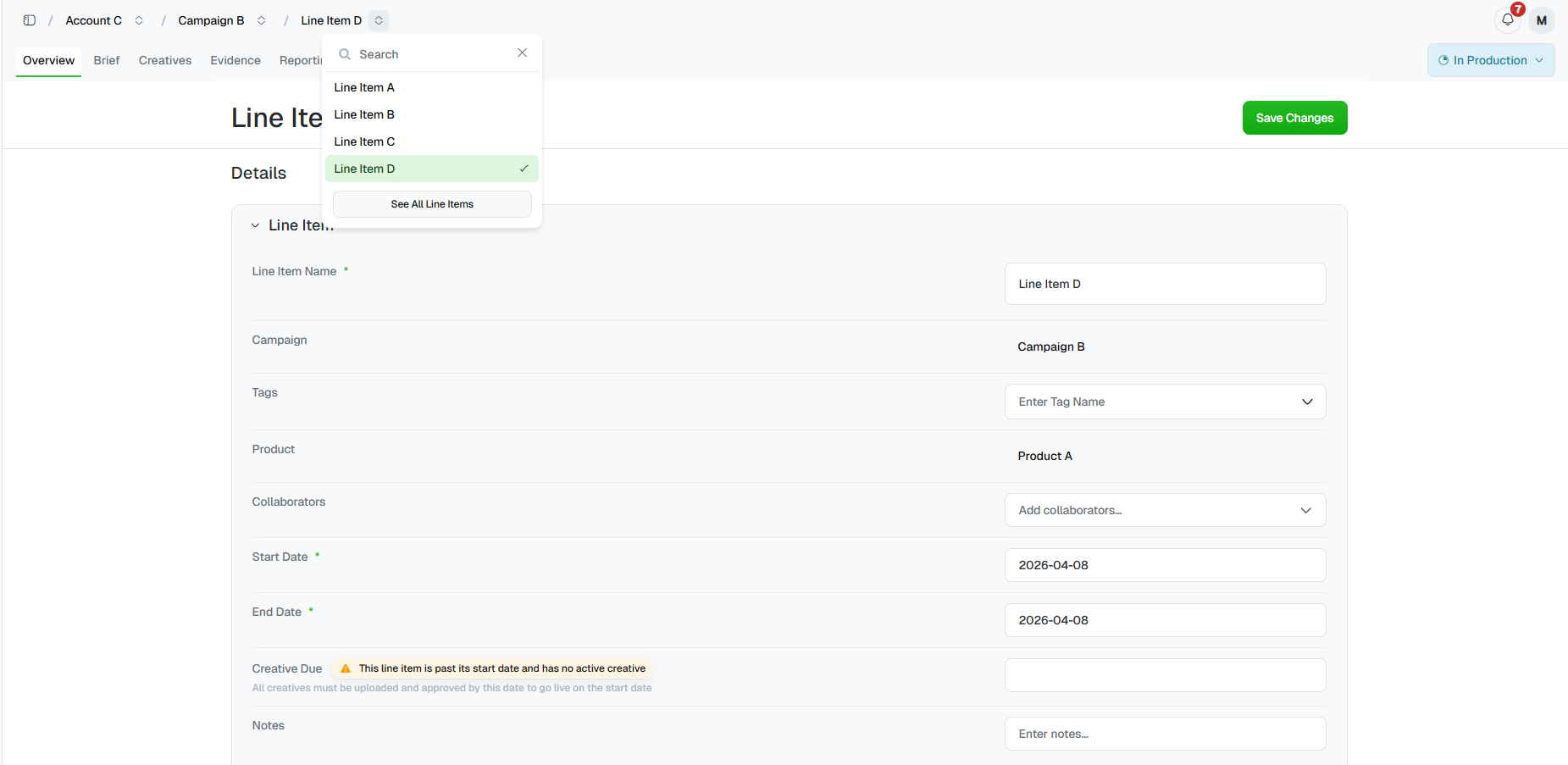 **Pro tip** — the chevron switcher works at any depth. From a creative,
you can hop to a sibling line item by clicking the chevron on the line-item
segment, no need to back out first.
## Tabs at each level
Open any record — an account, a campaign, a line item, a creative — and the
canvas splits into tabs. The tab set is consistent within a level but
shrinks as you go deeper.
| Tab | Account | Campaign | Line Item | Creative |
| ------------- | :-----: | :------: | :-------: | :------: |
| **Overview** | ✓ | ✓ | ✓ | ✓ |
| **Brief** | — | ✓ | ✓ | — |
| **Creatives** | — | ✓ | ✓ | — |
| **Evidence** | — | ✓ | ✓ | — |
| **Reporting** | — | ✓ | ✓ | — |
| **Comments** | — | ✓ | ✓ | ✓ |
| **Documents** | — | ✓ | — | — |
| **History** | — | ✓ | ✓ | ✓ |
| **Settings** | ✓ | ✓ | — | — |
**Overview** is the form view: edit fields, save changes. **Brief**,
**Creatives**, **Evidence**, **Reporting** and **Documents** are roll-ups —
each one shows the children below it that match that purpose. **Comments**
and **History** are present everywhere; if you ever lose the thread,
History tells you who changed what and when.
**The tabs roll up.** Open a campaign's **Reporting** tab and you'll see
every line item below it. Open a line item's **Reporting** tab and you'll
see just that one. Same data, different scope.
## Three ways to find what you want
Start at **Accounts**, click in, drill to a campaign, drill to a line
item. Use this when you know the advertiser but not the line item.
Pick **Campaigns** or **Line Items** from the sidebar to see every
record across the workspace. Use the search bar and column filters to
narrow down — handy when you don't remember which account a line item
lives under.
Already on a record? Use the chevrons in the breadcrumb to hop to a
sibling without leaving the tab you're on. Fastest way to compare two
line items in the same campaign.
**What happens next** — once you're comfortable moving around, head to
[Adding a new account](/setup/add-account) to set up your first
advertiser, or [Creating a campaign](/setup/create-campaign) if the
account already exists.
**Pro tip** — the chevron switcher works at any depth. From a creative,
you can hop to a sibling line item by clicking the chevron on the line-item
segment, no need to back out first.
## Tabs at each level
Open any record — an account, a campaign, a line item, a creative — and the
canvas splits into tabs. The tab set is consistent within a level but
shrinks as you go deeper.
| Tab | Account | Campaign | Line Item | Creative |
| ------------- | :-----: | :------: | :-------: | :------: |
| **Overview** | ✓ | ✓ | ✓ | ✓ |
| **Brief** | — | ✓ | ✓ | — |
| **Creatives** | — | ✓ | ✓ | — |
| **Evidence** | — | ✓ | ✓ | — |
| **Reporting** | — | ✓ | ✓ | — |
| **Comments** | — | ✓ | ✓ | ✓ |
| **Documents** | — | ✓ | — | — |
| **History** | — | ✓ | ✓ | ✓ |
| **Settings** | ✓ | ✓ | — | — |
**Overview** is the form view: edit fields, save changes. **Brief**,
**Creatives**, **Evidence**, **Reporting** and **Documents** are roll-ups —
each one shows the children below it that match that purpose. **Comments**
and **History** are present everywhere; if you ever lose the thread,
History tells you who changed what and when.
**The tabs roll up.** Open a campaign's **Reporting** tab and you'll see
every line item below it. Open a line item's **Reporting** tab and you'll
see just that one. Same data, different scope.
## Three ways to find what you want
Start at **Accounts**, click in, drill to a campaign, drill to a line
item. Use this when you know the advertiser but not the line item.
Pick **Campaigns** or **Line Items** from the sidebar to see every
record across the workspace. Use the search bar and column filters to
narrow down — handy when you don't remember which account a line item
lives under.
Already on a record? Use the chevrons in the breadcrumb to hop to a
sibling without leaving the tab you're on. Fastest way to compare two
line items in the same campaign.
**What happens next** — once you're comfortable moving around, head to
[Adding a new account](/setup/add-account) to set up your first
advertiser, or [Creating a campaign](/setup/create-campaign) if the
account already exists.