> ## Documentation Index
> Fetch the complete documentation index at: https://docs.uplifthub.io/llms.txt
> Use this file to discover all available pages before exploring further.
# Adding creatives
> How to create a new creative on a line item and set it up ready for building.
export const Ui = ({children}) =>
{children}
;
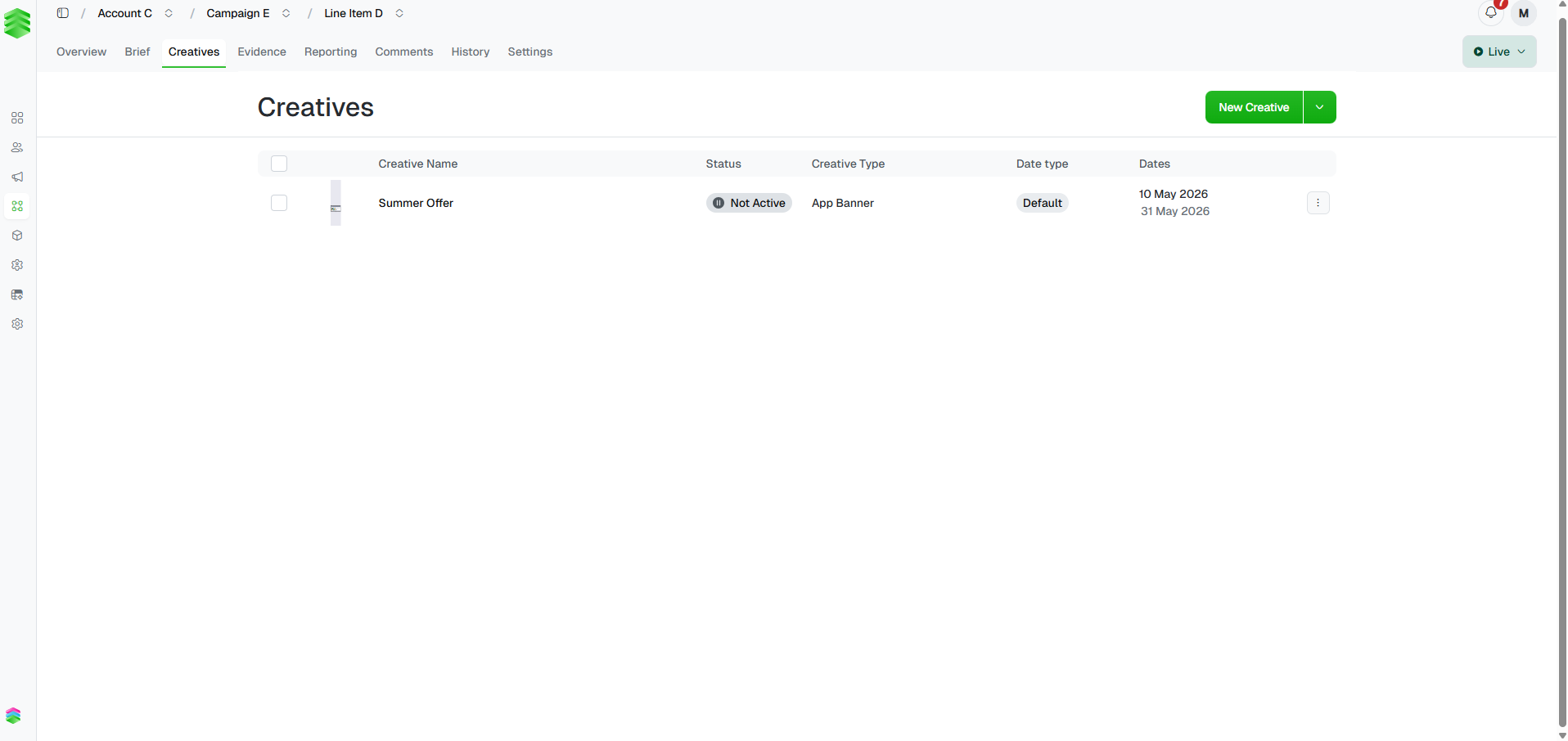
Creatives live at the line item level. Each line item can have multiple creatives — useful when you need different assets for different flight periods or variations. To add a creative, open the line item and switch to its Creatives tab.
Navigate to the line item — either from the sidebar Line Items page
or through its parent campaign — then click the Creatives tab. The
table shows all existing creatives with their name, status, creative type,
date type, and flight dates.
 Click New Creative in the top right. A modal opens with the
creative details form.
Click New Creative in the top right. A modal opens with the
creative details form.
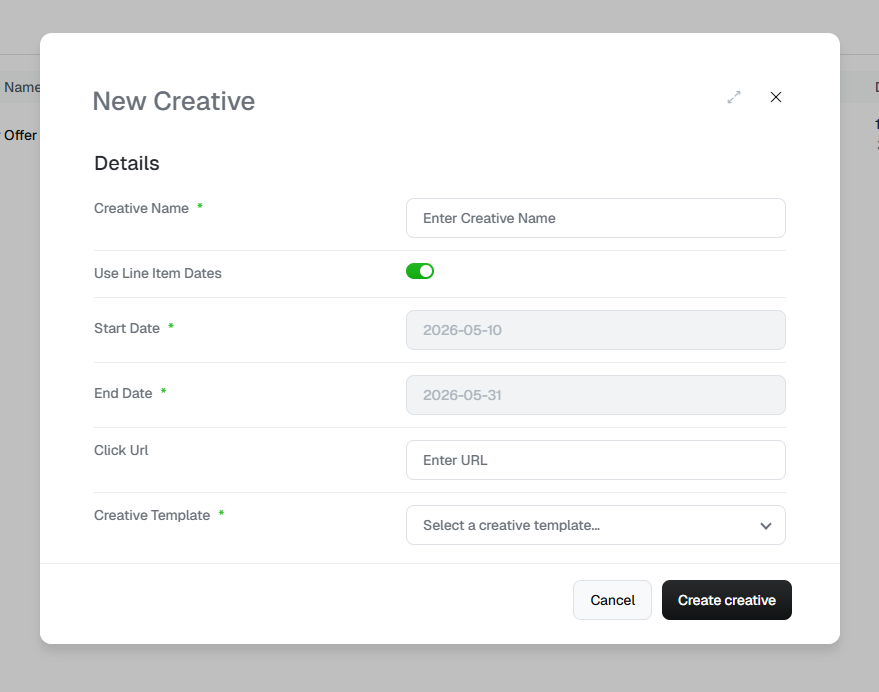 Complete the form before clicking Create creative:
| Field | Notes |
| ----------------------- | ---------------------------------------------------------------------------------------------------------------------------------------------------------------------------------------------------------------------- |
| **Creative Name** | A clear, descriptive name — shown in the creatives table and the campaign roll-up. |
| **Use Line Item Dates** | On by default. The creative inherits its start and end dates from the parent line item. Toggle off to set custom dates — the Date type column will show `Default` when inherited, or the custom range when overridden. |
| **Start / End Date** | Only editable when **Use Line Item Dates** is off. |
| **Click URL** | The destination page when a user clicks the ad. |
| **Creative Template** | Determines the format and the Creative Components fields on the detail page. Templates are product-specific and built by the Platform 195 support team — contact your account manager if you need a new one. |
**Creative Template cannot be changed after saving.** If you select the
wrong template you'll need to delete the creative and start again.
Click Create creative. A "Creative Successfully Created" confirmation
appears and you land on the creative detail page, ready to add components
and assets. See [Building creatives](/creatives/build) for next steps.
You can add multiple creatives to a single line item — for example, one for
the first half of a campaign flight and a refreshed version for the second half.
Complete the form before clicking Create creative:
| Field | Notes |
| ----------------------- | ---------------------------------------------------------------------------------------------------------------------------------------------------------------------------------------------------------------------- |
| **Creative Name** | A clear, descriptive name — shown in the creatives table and the campaign roll-up. |
| **Use Line Item Dates** | On by default. The creative inherits its start and end dates from the parent line item. Toggle off to set custom dates — the Date type column will show `Default` when inherited, or the custom range when overridden. |
| **Start / End Date** | Only editable when **Use Line Item Dates** is off. |
| **Click URL** | The destination page when a user clicks the ad. |
| **Creative Template** | Determines the format and the Creative Components fields on the detail page. Templates are product-specific and built by the Platform 195 support team — contact your account manager if you need a new one. |
**Creative Template cannot be changed after saving.** If you select the
wrong template you'll need to delete the creative and start again.
Click Create creative. A "Creative Successfully Created" confirmation
appears and you land on the creative detail page, ready to add components
and assets. See [Building creatives](/creatives/build) for next steps.
You can add multiple creatives to a single line item — for example, one for
the first half of a campaign flight and a refreshed version for the second half.