> ## Documentation Index
> Fetch the complete documentation index at: https://docs.uplifthub.io/llms.txt
> Use this file to discover all available pages before exploring further.
# Manage connectors
> Connect advertising platforms and AI providers to Uplift Hub, and manage who owns each connection.
export const Ui = ({children}) =>
{children}
;
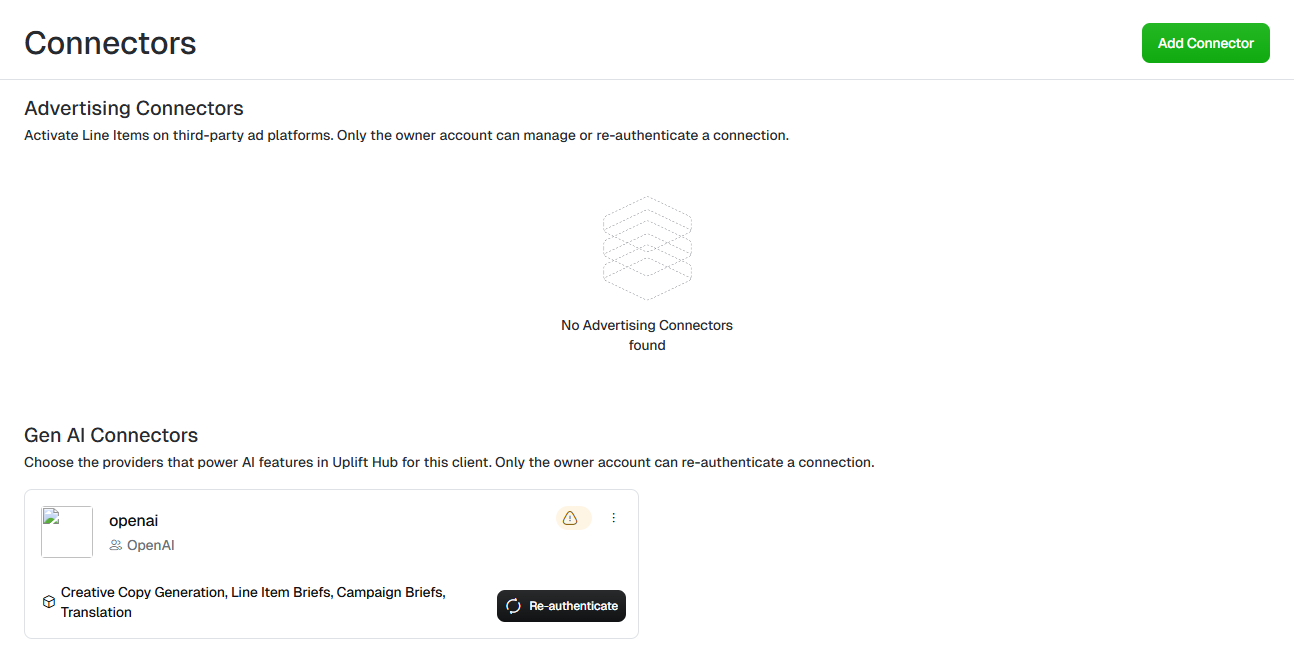
**Connectors** link Uplift Hub to the outside services it works with. There
are two kinds:
* **Advertising Connectors** activate line items on third-party ad platforms.
* **Gen AI Connectors** choose the AI providers that power Uplift Hub's
[AI features](/client-configuration/ai-configuration) for your client.
 ***
## Add a connector
Select Configuration in the sidebar, then click the
Connectors tile.
Click Add Connector in the top right.
Find the service under **Advertising Connectors** or **Gen AI Connectors** —
use the search box to narrow the list — and click its tile. Gen AI options
include **Anthropic Claude**, **Google Gemini** and **OpenAI**.
A secure sign-in page opens for that service. Follow the steps to sign in
or enter your API key, then return to Uplift Hub.
***
## Add a connector
Select Configuration in the sidebar, then click the
Connectors tile.
Click Add Connector in the top right.
Find the service under **Advertising Connectors** or **Gen AI Connectors** —
use the search box to narrow the list — and click its tile. Gen AI options
include **Anthropic Claude**, **Google Gemini** and **OpenAI**.
A secure sign-in page opens for that service. Follow the steps to sign in
or enter your API key, then return to Uplift Hub.
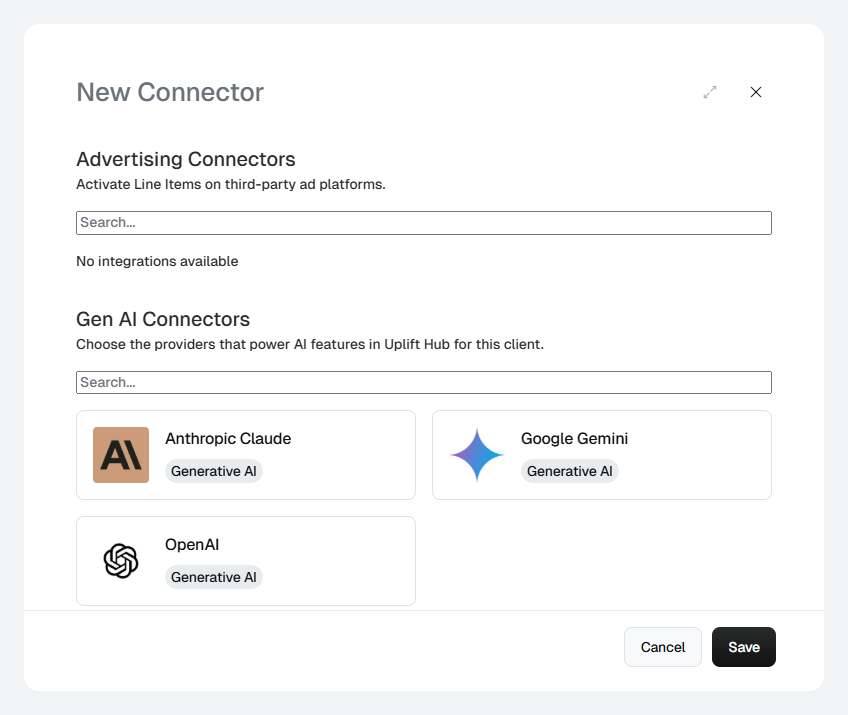 If **Advertising Connectors** shows `No integrations available`, no ad
platforms are enabled for your client yet. Contact your Platform 195
representative to enable one.
***
## Connector ownership
Each connection belongs to the user who created it — its **owner**. Only the
owner can manage or re-authenticate the connection, because it uses their
credentials.
***
## Re-authenticate a connector
A warning icon on a connector card means the connection needs attention — for
example, an expired key or revoked access. If you're the owner, click
Re-authenticate on the card and sign in again.
Features that rely on a connector stop working until it's re-authenticated.
For a Gen AI connector, that includes the features listed on its card.
***
## Rename, transfer or delete a connector
Click the **⋮** menu on a connector card:
* Edit label — change the **Connector Label** shown on the card.
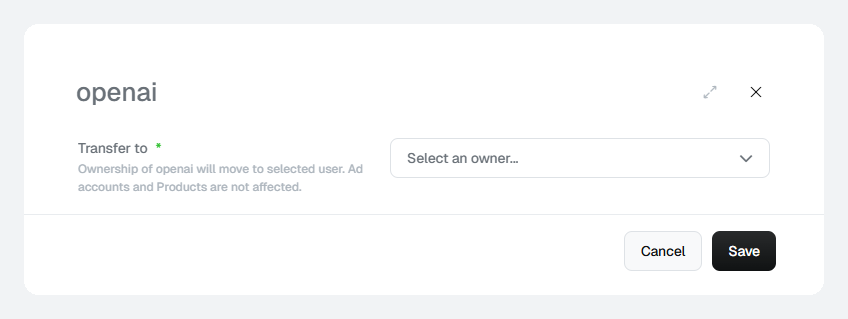
* Transfer Ownership — hand the connection to another user. Choose
the new owner in **Transfer to** and click Save. Ad accounts and
products are not affected.
* Delete — remove the connection.
If **Advertising Connectors** shows `No integrations available`, no ad
platforms are enabled for your client yet. Contact your Platform 195
representative to enable one.
***
## Connector ownership
Each connection belongs to the user who created it — its **owner**. Only the
owner can manage or re-authenticate the connection, because it uses their
credentials.
***
## Re-authenticate a connector
A warning icon on a connector card means the connection needs attention — for
example, an expired key or revoked access. If you're the owner, click
Re-authenticate on the card and sign in again.
Features that rely on a connector stop working until it's re-authenticated.
For a Gen AI connector, that includes the features listed on its card.
***
## Rename, transfer or delete a connector
Click the **⋮** menu on a connector card:
* Edit label — change the **Connector Label** shown on the card.
* Transfer Ownership — hand the connection to another user. Choose
the new owner in **Transfer to** and click Save. Ad accounts and
products are not affected.
* Delete — remove the connection.
 Before someone who owns a connector leaves your team, transfer ownership to
another user so the connection can still be re-authenticated.
This documentation is built and hosted on [Mintlify](https://mintlify.com), a developer documentation platform.
Before someone who owns a connector leaves your team, transfer ownership to
another user so the connection can still be re-authenticated.
This documentation is built and hosted on [Mintlify](https://mintlify.com), a developer documentation platform.