> ## Documentation Index
> Fetch the complete documentation index at: https://docs.uplifthub.io/llms.txt
> Use this file to discover all available pages before exploring further.
# Configure AI
> Set the language, tone of voice and model settings Uplift Hub uses to generate copy, briefs and translations.
export const Ui = ({children}) =>
{children}
;
**AI Configuration** controls how Uplift Hub's AI features write for your
client — creative copy, line item and campaign briefs, audience descriptions
and translations. Set your brand's language and tone once, and every
AI-generated suggestion follows it.
The screen has three tabs: **AI Providers**, **Output Defaults** and
**Generation Parameters**.
***
## AI Providers
The **AI Providers** tab lists the AI services connected to your client and
which features each one powers.
 To add a provider, click Add Provider. This takes you to
[Connectors](/client-configuration/connectors), where you connect a new
**Gen AI Connector**.
***
## Set your output defaults
**Output Defaults** apply to everything the AI writes for your client.
Select Configuration in the sidebar, click
AI Configuration, then click the Output Defaults tab.
Pick the **Default Output Language** — for example `English`, `German` or
`French`.
In **Tone of Voice**, describe how your brand should sound — style,
formality, what to lead with and what to avoid.
Click Save Changes.
To add a provider, click Add Provider. This takes you to
[Connectors](/client-configuration/connectors), where you connect a new
**Gen AI Connector**.
***
## Set your output defaults
**Output Defaults** apply to everything the AI writes for your client.
Select Configuration in the sidebar, click
AI Configuration, then click the Output Defaults tab.
Pick the **Default Output Language** — for example `English`, `German` or
`French`.
In **Tone of Voice**, describe how your brand should sound — style,
formality, what to lead with and what to avoid.
Click Save Changes.
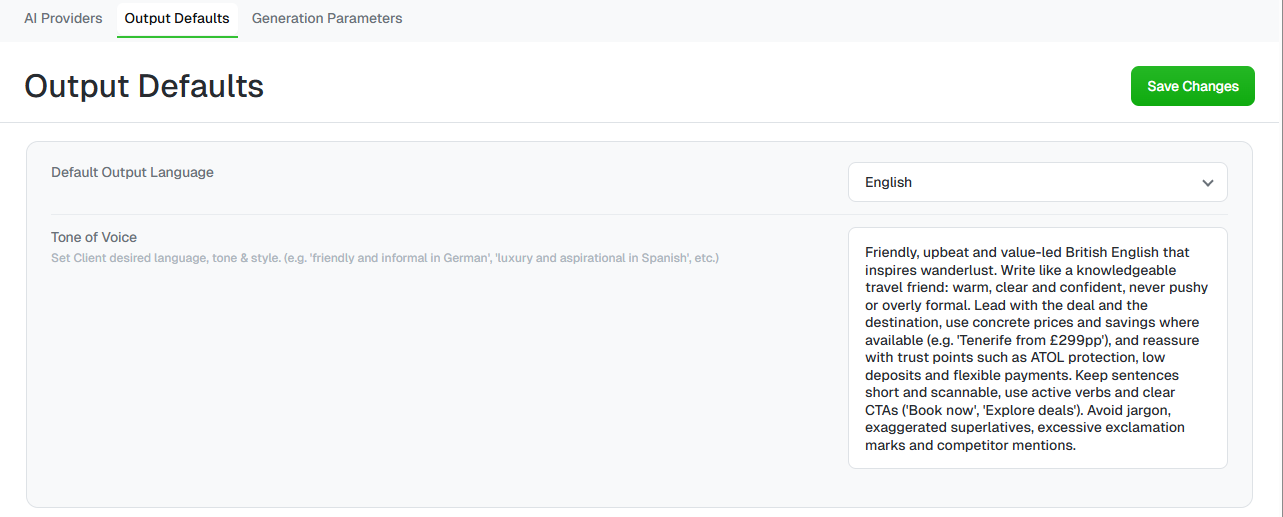 The more specific your tone of voice, the better the results. Include the
English variant (British or American), example phrases and calls to action,
and anything to avoid — such as jargon, exaggerated superlatives or
competitor mentions.
***
## Tune generation parameters
**Generation Parameters** lets you fine-tune each AI feature separately. Each
feature has its own collapsible section:
* **Creative Copy Generation**
* **Line Item Briefs**
* **Campaign Briefs**
* **Audience Descriptions**
* **Translation**
The more specific your tone of voice, the better the results. Include the
English variant (British or American), example phrases and calls to action,
and anything to avoid — such as jargon, exaggerated superlatives or
competitor mentions.
***
## Tune generation parameters
**Generation Parameters** lets you fine-tune each AI feature separately. Each
feature has its own collapsible section:
* **Creative Copy Generation**
* **Line Item Briefs**
* **Campaign Briefs**
* **Audience Descriptions**
* **Translation**
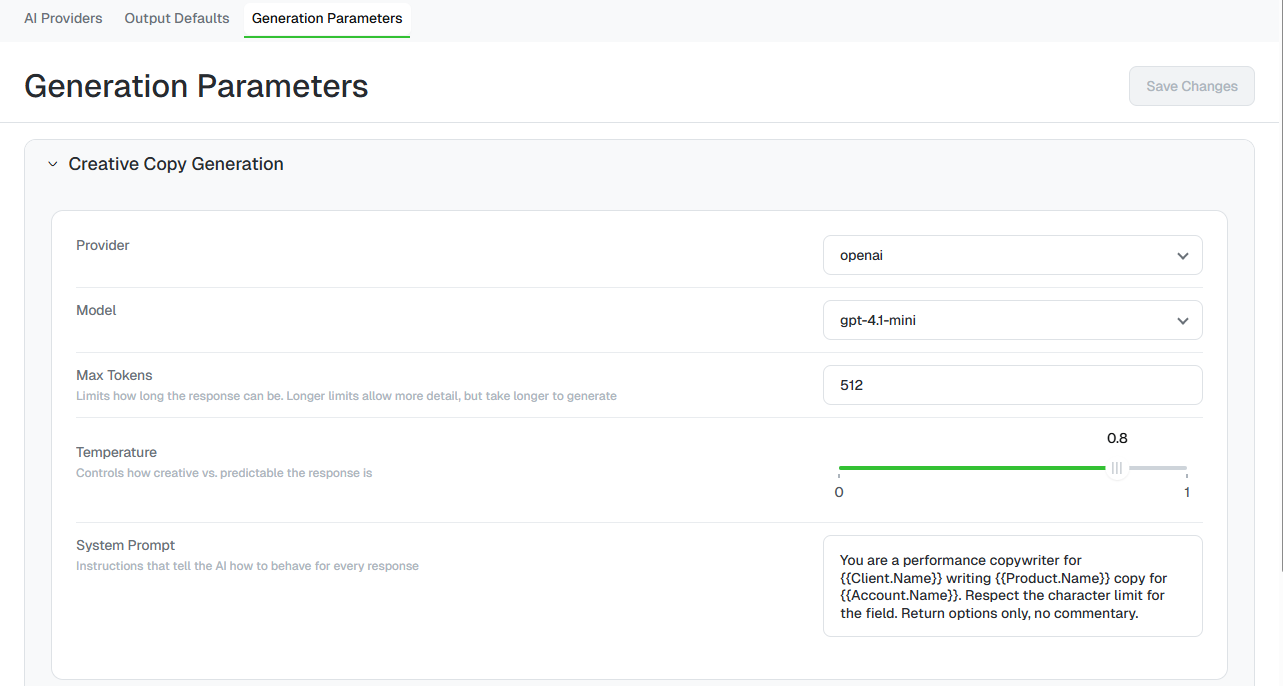 | Setting | What it does |
| - | - |
| **Provider** | The connected AI provider used for this feature. |
| **Model** | The provider's model. Newer, larger models usually write better but can be slower. |
| **Max Tokens** | Limits how long the response can be. Higher limits allow more detail but take longer to generate. |
| **Temperature** | Controls how creative or predictable the response is, from `0` (most predictable) to `1` (most creative). |
| **System Prompt** | Instructions the AI follows for every response in this feature. |
### Use placeholders in the system prompt
The system prompt can include placeholders that Uplift Hub fills in for each
request — for example `{{Client.Name}}`, `{{Account.Name}}` and
`{{Product.Name}}`:
```text theme={null}
You are a performance copywriter for {{Client.Name}} writing {{Product.Name}}
copy for {{Account.Name}}. Respect the character limit for the field. Return
options only, no commentary.
```
### Test before you save
Expand a feature and change its model, temperature or system prompt.
In **Test Prompt**, click Generate 3 Options. Uplift Hub sends a
real request using that feature's current settings and shows three
suggestions.
When you're happy with the results, click Save Changes in the top
right.
| Setting | What it does |
| - | - |
| **Provider** | The connected AI provider used for this feature. |
| **Model** | The provider's model. Newer, larger models usually write better but can be slower. |
| **Max Tokens** | Limits how long the response can be. Higher limits allow more detail but take longer to generate. |
| **Temperature** | Controls how creative or predictable the response is, from `0` (most predictable) to `1` (most creative). |
| **System Prompt** | Instructions the AI follows for every response in this feature. |
### Use placeholders in the system prompt
The system prompt can include placeholders that Uplift Hub fills in for each
request — for example `{{Client.Name}}`, `{{Account.Name}}` and
`{{Product.Name}}`:
```text theme={null}
You are a performance copywriter for {{Client.Name}} writing {{Product.Name}}
copy for {{Account.Name}}. Respect the character limit for the field. Return
options only, no commentary.
```
### Test before you save
Expand a feature and change its model, temperature or system prompt.
In **Test Prompt**, click Generate 3 Options. Uplift Hub sends a
real request using that feature's current settings and shows three
suggestions.
When you're happy with the results, click Save Changes in the top
right.
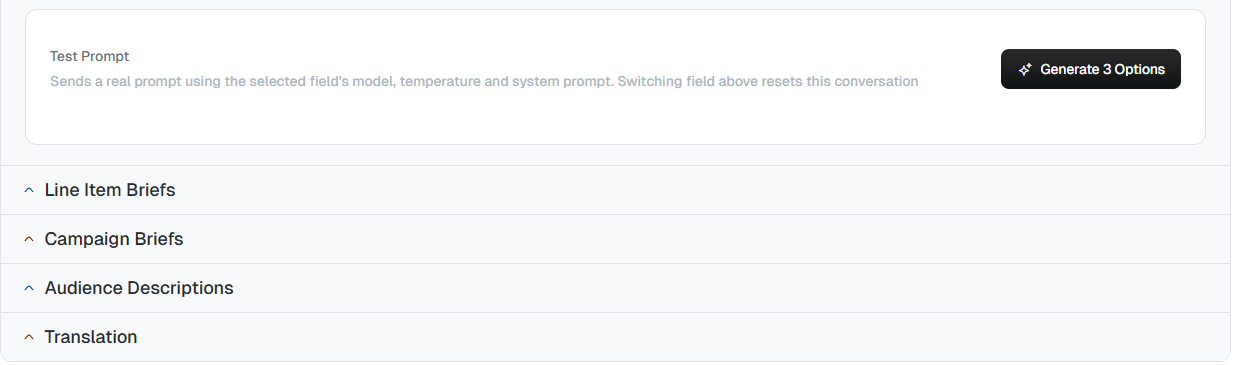 Switching to a different feature resets the test conversation.
Use a low temperature (around `0.2`–`0.4`) for briefs and translations, where
accuracy matters, and a higher one (around `0.7`–`0.8`) for creative copy,
where you want more variety.
This documentation is built and hosted on [Mintlify](https://mintlify.com), a developer documentation platform.
Switching to a different feature resets the test conversation.
Use a low temperature (around `0.2`–`0.4`) for briefs and translations, where
accuracy matters, and a higher one (around `0.7`–`0.8`) for creative copy,
where you want more variety.
This documentation is built and hosted on [Mintlify](https://mintlify.com), a developer documentation platform.